 ReagentFlow
Invites
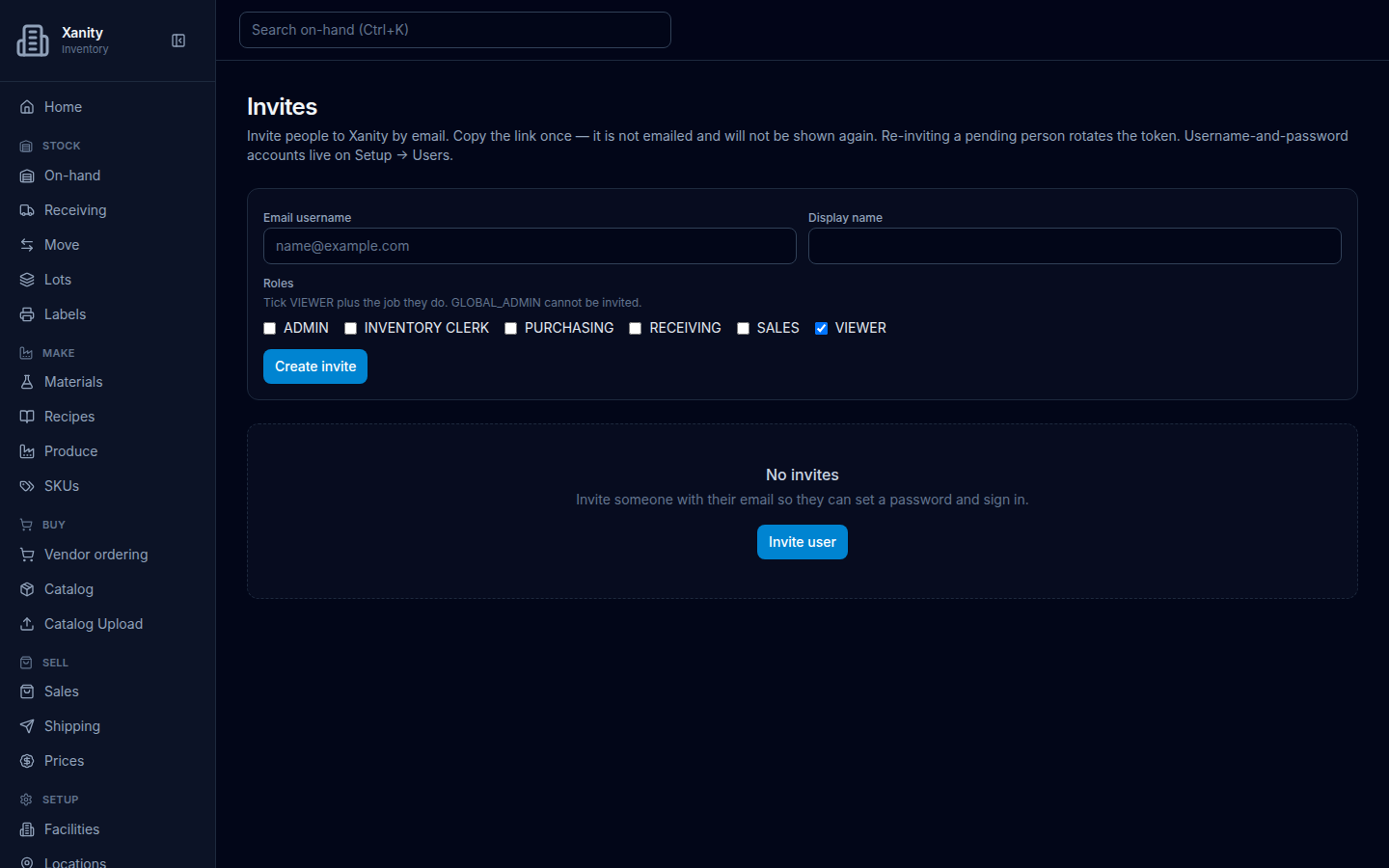
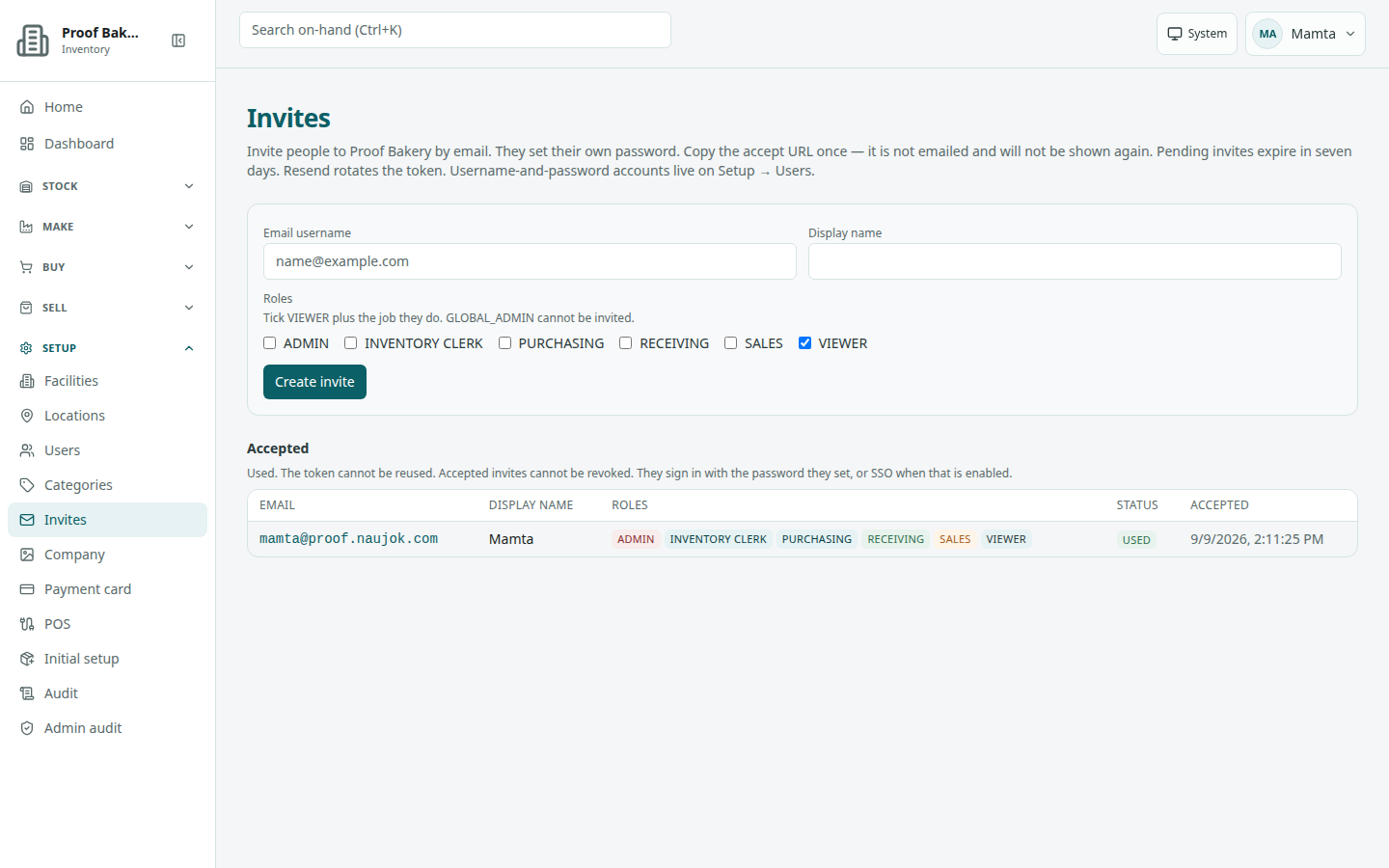
Page title Invites. Description on screen: Invite people to [company] by email. They set their own password. Copy the accept URL once — it is not emailed and will not be shown again. Pending invites expire in seven days. Resend rotates the token. Username-and-password accounts live on Setup → Users.
Create an invite
- Open Setup → Invites.
- In the form labeled Create invite, fill Email username (placeholder name@example.com) and Display name.
- Under Roles, read: Tick VIEWER plus the job they do. GLOBAL_ADMIN cannot be invited. Checkboxes: ADMIN, INVENTORY CLERK, PURCHASING, RECEIVING, SALES, VIEWER.
- Pick a Seat plan (Monthly or Annual). Hint: A seat starts now and is billed on your account’s billing date (prorated). The field is hidden when the invite does not need a seat.
- Choose Create invite (it reads Inviting…).
A panel headed Invite ready says: Invite for [display name] ([email]) is ready. Copy the accept URL now — the token is shown only this once and is not emailed. It shows Token, Expires, and Accept URL. Choose Copy invite URL; it changes to Copied.
To add someone and have ReagentFlow email the invite for you, use Users instead.
Pending invites
The Pending table has columns Email, Display name, Roles, Status (Pending or Expired), Expires, Invited by, and Actions. Note above it: Expired invites cannot be used. Resend to rotate the token — copy the new accept URL once.
- Resend (reads Resending…) issues a new token and a new seven-day expiry, and shows the Invite ready panel again. The old link stops working.
- Revoke arms Confirm revoke / Keep. Success: Invite revoked.
Accepted invites
The Accepted section says: Used. The token cannot be reused. Accepted invites cannot be revoked. They sign in with the password they set, or SSO when that is enabled. Columns: Email, Display name, Roles, Status (Used), Accepted.
Accept an invite (public page)
The invitee opens the link. That page is not inside the signed-in app. It shows the ReagentFlow mark, title ReagentFlow, and subtitle Accept invite.
If the link has no token, the page says This invite link is missing a token. It cannot be used. Ask the person who invited you for a new link. If the token was already used, has expired, or belongs to another company: This invite is used, expired, or for a different company. It cannot be reused. Ask the person who invited you for a new link.
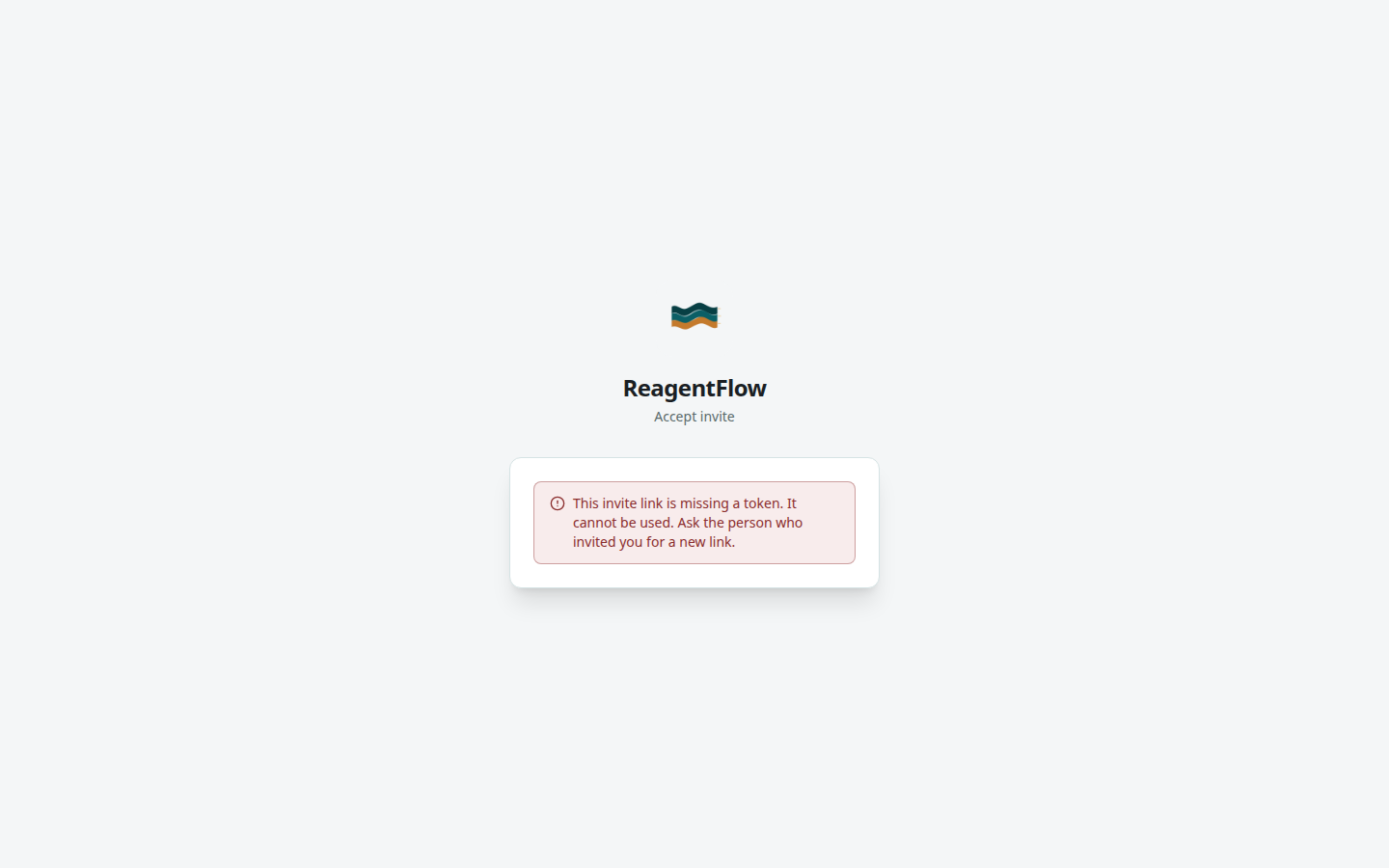
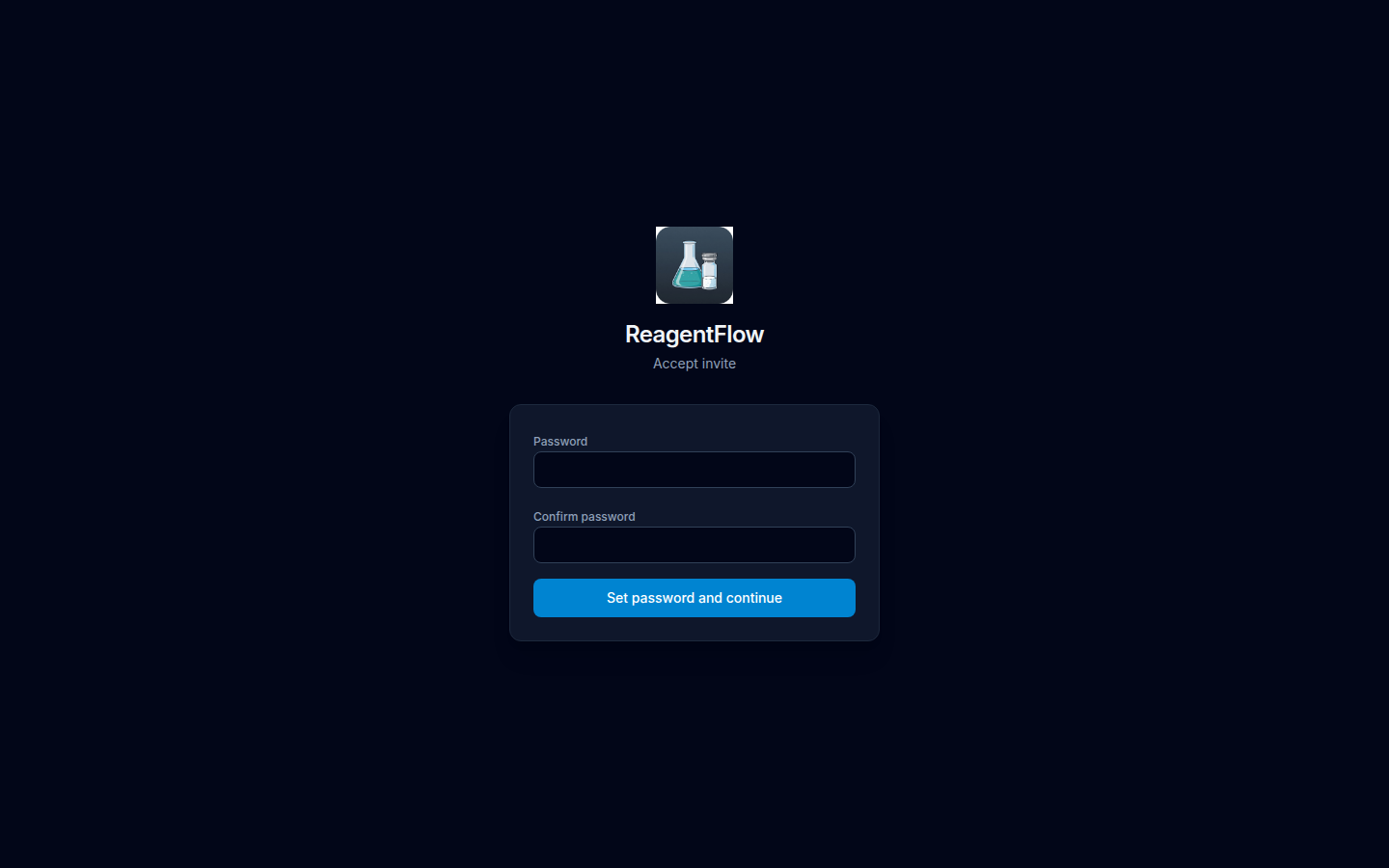
/invite opened without a token.With a valid token, the form labeled Accept invite has Password, Confirm password, and Set password and continue (or Saving…). Mismatch copy: Password and confirmation do not match.
After a successful accept the page says Welcome, [display name]. Your account at [company] is ready. and shows Email: [email]. It then says either Sign in with this email and the password you just set. or, for single sign-on companies, This company uses single sign-on. Use email address to login on the next screen. Do not expect a password field. Choose Sign in; the login page opens with your email remembered.