 ReagentFlow
Receiving
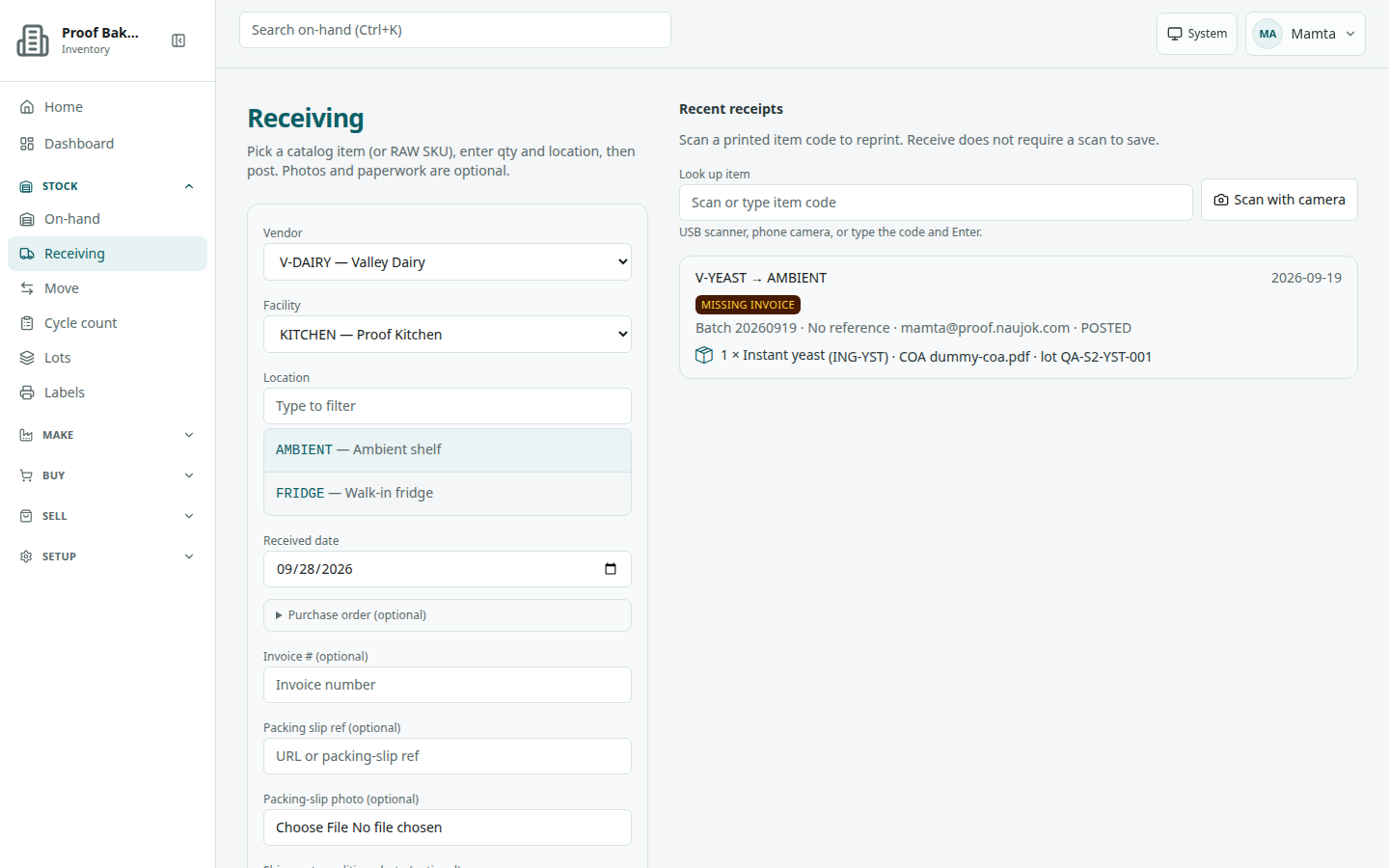
Page title Receiving. Description on screen: Pick a catalog item (or RAW SKU), enter qty and location, then post. Photos and paperwork are optional.
/receiving).Post a receipt
- Open Receiving.
- Set Vendor, Facility, Location, and Received date (required).
- Optional: open Purchase order (optional) and pick a Purchase order to fill the lines from its open quantities (then Quantity is the vendor order qty. The server expands each line into packages on the shelf.). Leave it at None — quantity is on-hand units to receive without one. Reference (optional; placeholder PO or internal ref) is also here.
- Optional header paperwork: Invoice # (placeholder Invoice number), Packing slip ref (placeholder URL or packing-slip ref), Packing-slip photo, and Shipment-condition photo.
- On each line, pick a Catalog item (Select catalog item…) or type a Catalog code. Optional: Existing RAW SKU lists only raw SKUs; leave it at None — catalog item is enough to let the catalog item decide.
- Enter Quantity. Under it, a line tells you how labels will print (see Print item labels).
- Optional: Lot number (placeholder Manufacturer lot), Expiry, and Retest.
- Under CoA present (optional), choose No or Yes.
- Choose Post receipt (it reads Posting…).
Success: Posted [vendor] → [location] ([n] units). If a required field is missing: Quantity, location, and a catalog item or RAW SKU are required.
Multi-item kits
When the SKU is a multi-item kit, the line says: This SKU tracks Remaining in Each (multi-item kit). Quantity is packages received; remaining pieces stay on the unit. Receiving does not explode the kit into child SKUs. Enter the number of kits, not pieces.
Storage class
If a material’s storage class is not allowed at the destination location, the receipt still posts with Storage class mismatch — receipt still posted. and a line per affected item. An admin can make this a hard stop on Company (Block receive when storage class does not match).
CoA paperwork on the line
When CoA present (optional) is Yes, the line shows:
- CoA file (optional)
- CoA ref or URL (placeholder URL, filename, or file ref)
- Remove CoA file after a file is chosen
Helper copy on the line: Add a lot number to store the CoA file on the lot after post. The CoA ref still saves on the receipt.
Print item labels
Under Quantity, each line tells you what will print: Receive labels: one label for each received item. or Receive labels: one label for the receipt line. When the SKU leaves the code off, it adds The item code is left off the label. The SKU’s item label settings and the company’s RAW receive tags setting decide which.
- After Post receipt, a queue appears on the same page: Print item labels (or Print received item labels when one label covers a line).
- Connect a NIIMBOT N1 or M2 in the queue. The description reminds you: Do not use the official NIIMBOT app.
- Choose Print on a package, or Print all [n].
You do not need to open Labels to print new packages.
Recent receipts
Below the form, Recent receipts lists posted work: Scan a printed item code to reprint. Receive does not require a scan to save.
- To reprint, scan or type a code into Look up item (placeholder Scan or type item code). A Reprint looked-up item panel appears: Print this package on a NIIMBOT N1 or M2. Do not use the official NIIMBOT app. If the SKU has Print a serial label turned off, the reprinted label leaves the item code off.
- Each card shows vendor → location, received date, batch, reference (or No reference), invoice, packing slip, purchase order, who posted, and status.
- Chips Missing invoice and Missing CoA flag paperwork gaps. A CoA document attached to the lot (or to the package) now clears Missing CoA.
- Arriving from a Home Missing Invoice link highlights the receipt and says Invoice is recorded when the receipt is posted. This receipt has no invoice number.
Empty: No receipts yet / Post a shipment to see it here.
Attach CoA after receive
If a lot still has no CoA, open Lots. An empty COA cell offers Attach CoA for hold-capable roles. On the lot detail panel, Attach CoA file opens the lot documents gallery. Once attached, the receipt’s Missing CoA chip clears.