 ReagentFlow
Vendors
Page title Vendors. Description on screen: Mark a supplier approved, pending, or blocked. Blocked suppliers stay off the default receive and catalog pickers. A typed catalog code can still post.
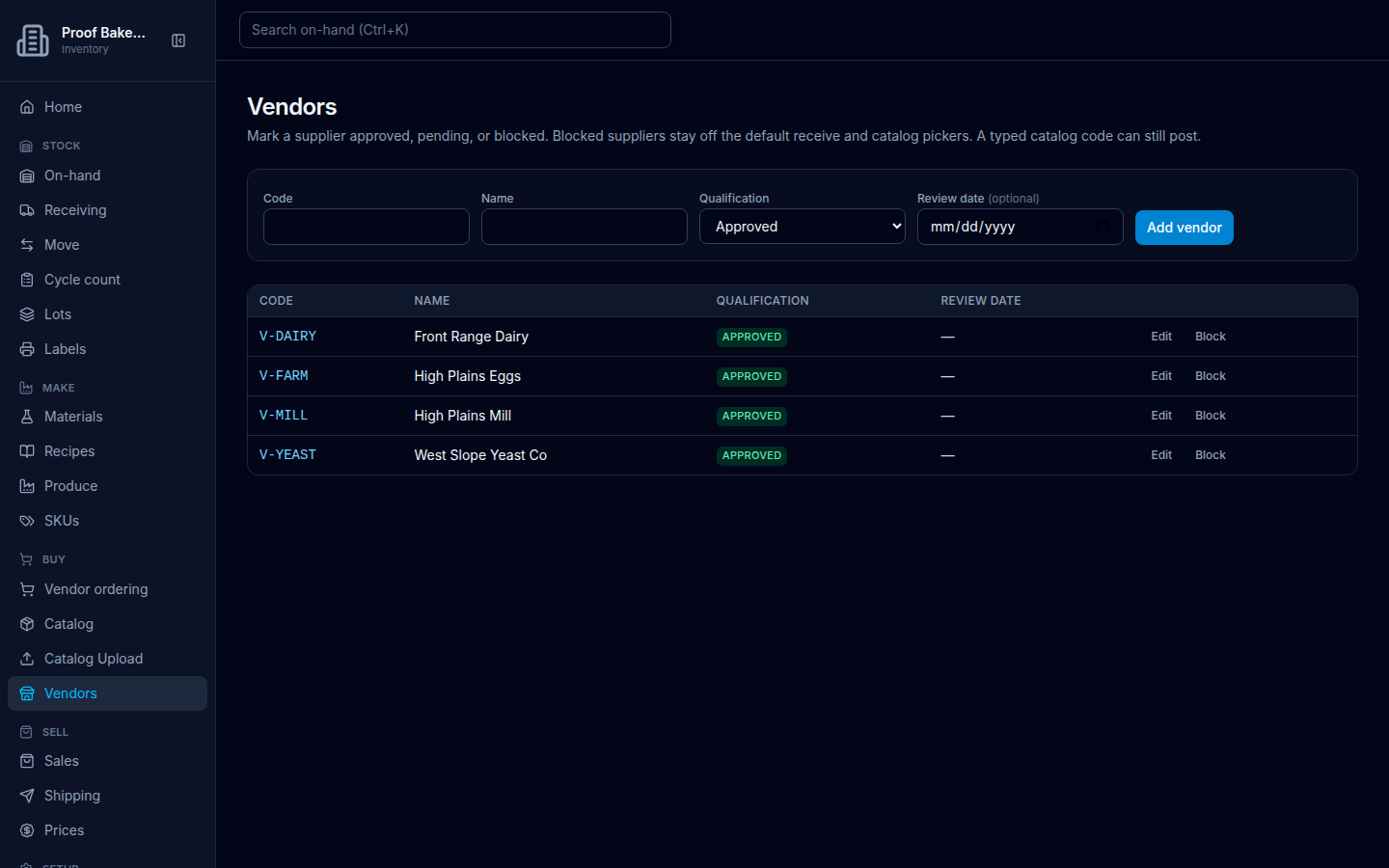
Add a vendor
- Open Vendors.
- In the form labeled Add vendor, fill Code and Name.
- Set Qualification to Approved, Pending, or Blocked.
- Optionally set Review date (field label shows Review date (optional) on create).
- Choose Add vendor (or Saving… while it runs).
Success copy: Vendor created.
Change qualification
- On a row, choose Edit to open the form labeled Edit vendor qualification, or use the quick Block / Approve buttons.
- When editing, set Qualification and optional Review date, then Save qualification (or Cancel).
Success copy: Vendor qualification updated.