 ReagentFlow
Profile, password, and theme
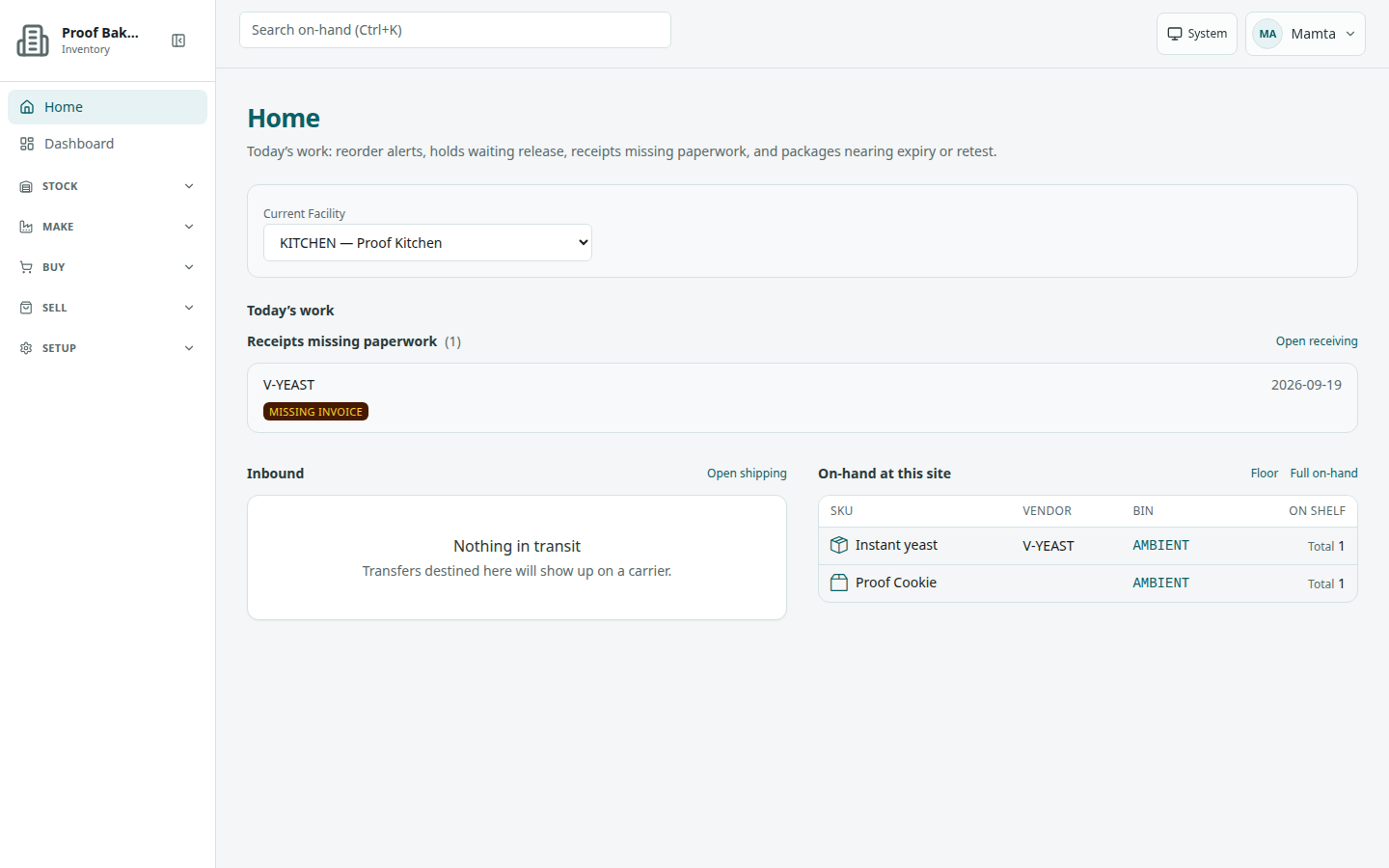
Your own account lives behind the account menu at the top right of every signed-in page. From there you edit your name and photo, change your password, and sign out. The theme button next to it switches between light and dark.
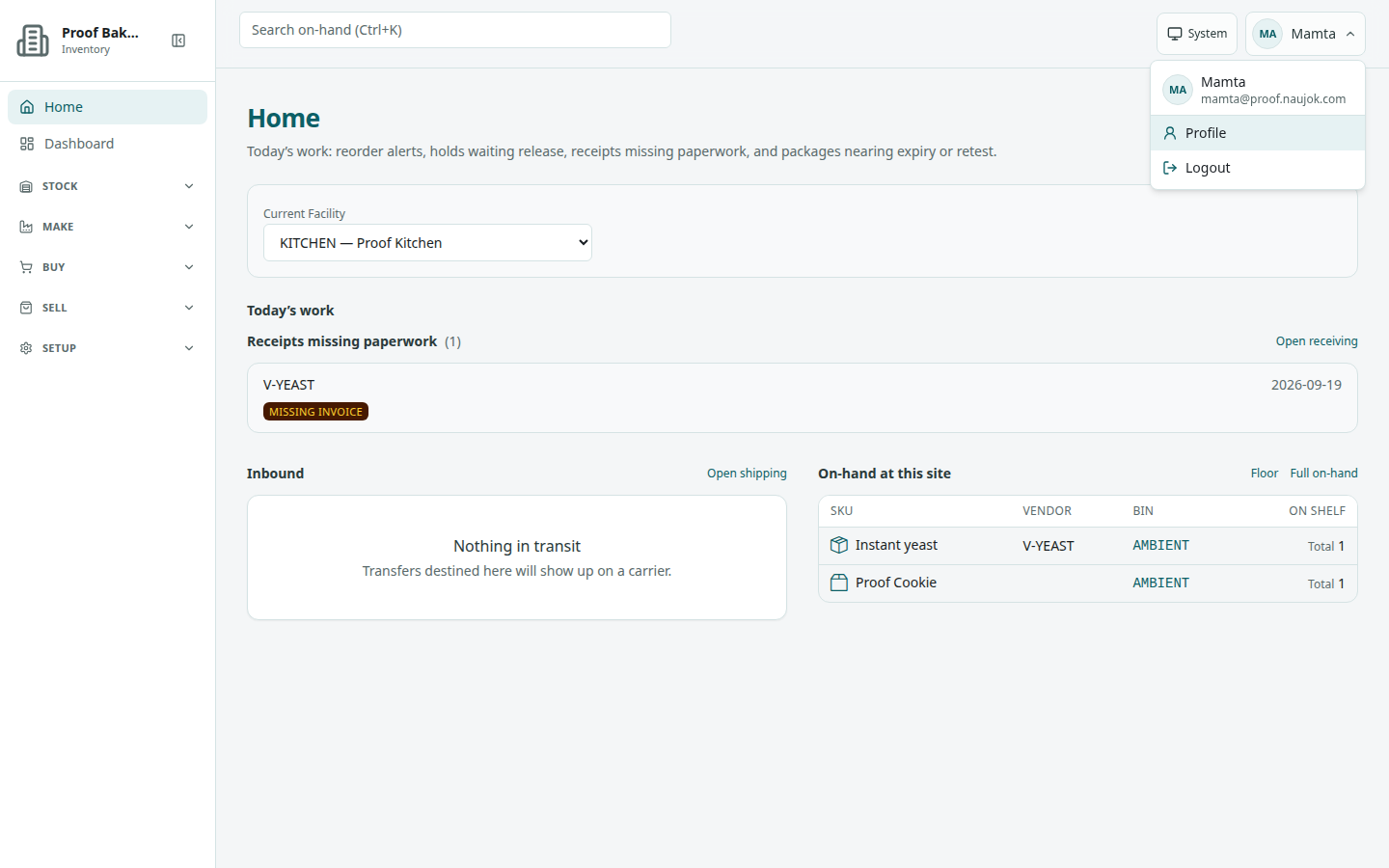
Open the account menu
- At the top right of any signed-in page, find the button with your photo (or your initials) and your name.
- Choose it. The menu shows your name and email at the top, then Profile, Change password (password accounts only), and Logout.
- Press Esc to close the menu without choosing anything. Arrow keys move between the menu items.
Sign out is no longer at the bottom of the sidebar. Use Logout in this menu.
Edit your profile
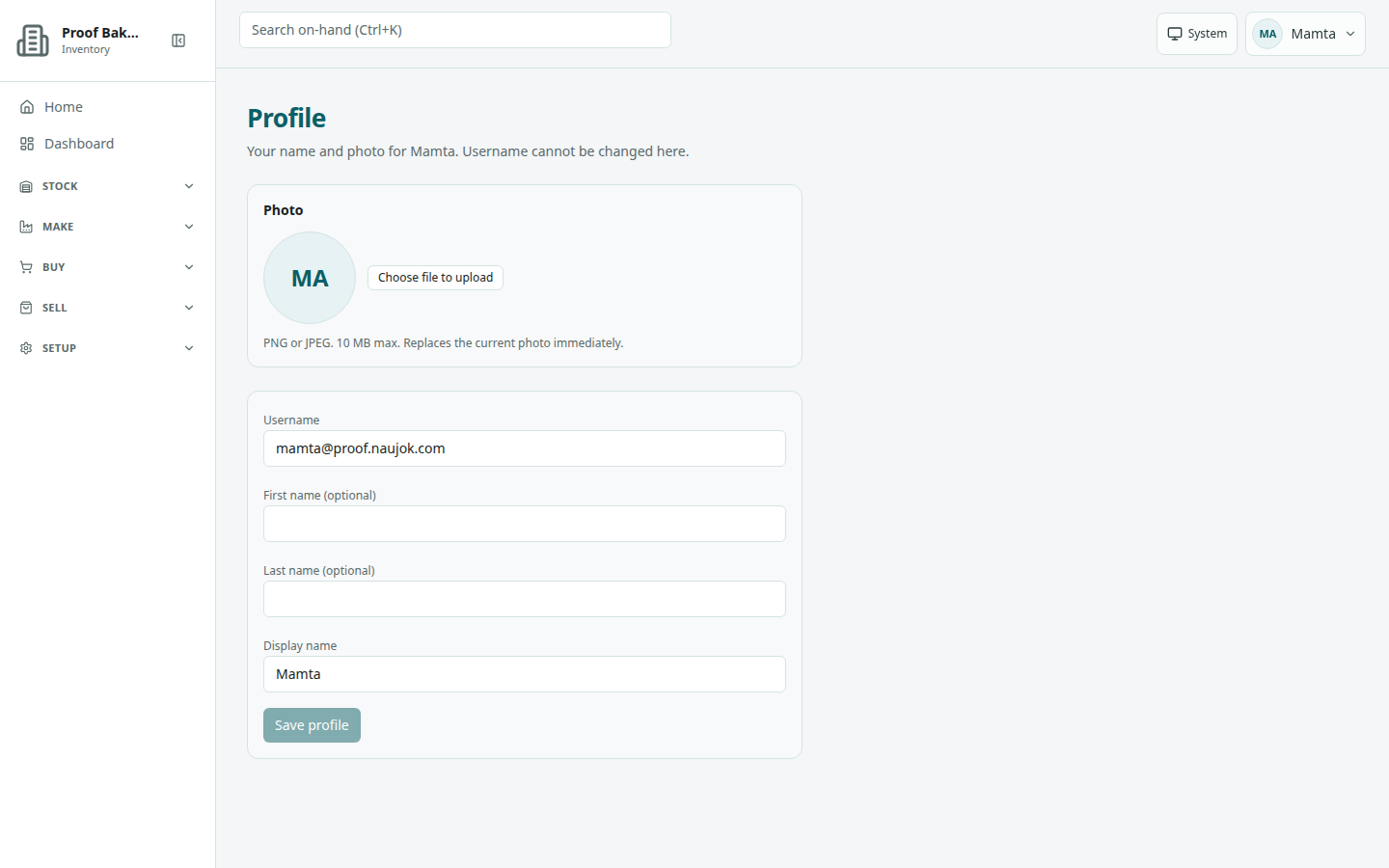
Page title Profile (/profile). Description on screen: Your name and photo for [your name]. Username cannot be changed here.
- Open the account menu and choose Profile.
- Read Username. It is read-only.
- Optionally fill First name and Last name. Your initials in the header come from these names.
- Edit Display name (required). This is the name other people see.
- Choose Save profile. The button stays disabled until you change something.
Success: Profile updated. Password accounts also see a Change password link under the form.
Add or replace your photo
- In the Photo section, drag an image onto the round photo frame, or choose Choose file to upload.
- The photo uploads straight away. Read Photo updated.
Help on screen: PNG or JPEG. 10 MB max. Replaces the current photo immediately. Other file types or larger files are refused with a message under the frame.
/profile).Change your password
Page title Change password (/change-password). This is for accounts with a ReagentFlow password, including password accounts on companies that also use single sign-on.
- Open the account menu and choose Change password.
- Read: Enter your current password and a new one of at least 8 characters.
- Fill Current password and New password.
- Choose Update password (it reads Saving…).
Success: Password updated.
If your account signs in only through your company, Google, or Apple, the page instead says This account has no local password to change. and Company sign-in for this account does not use a local password, so there is nothing to change here. Choose Back to profile. Change that password with your identity provider.
Forgot your current password? Sign out and use Forgot password on the login page. An admin can also send you a reset link from Users.
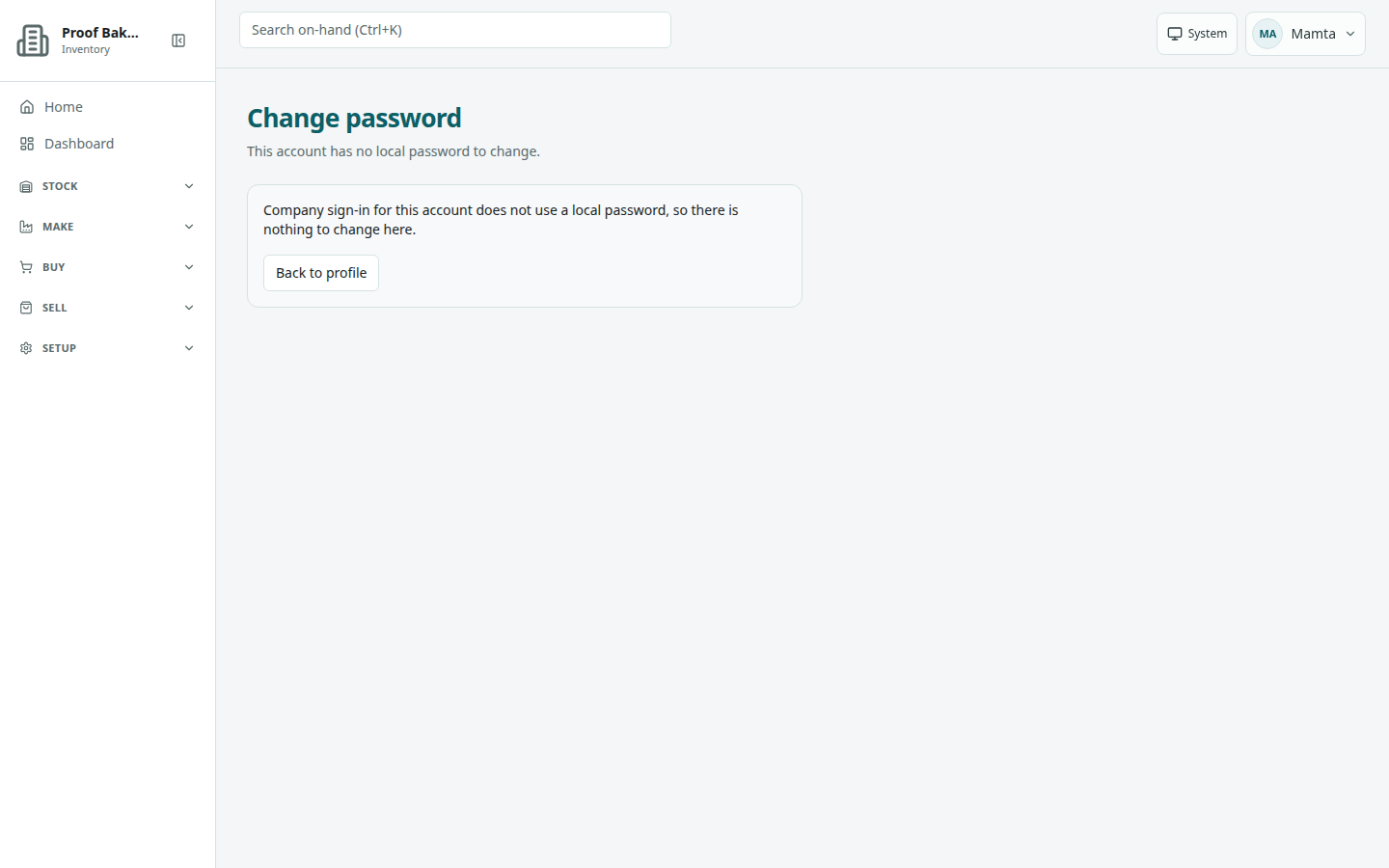
/change-password on an account that signs in through company sign-in. Accounts with a ReagentFlow password see the password form here.Theme (light and dark)
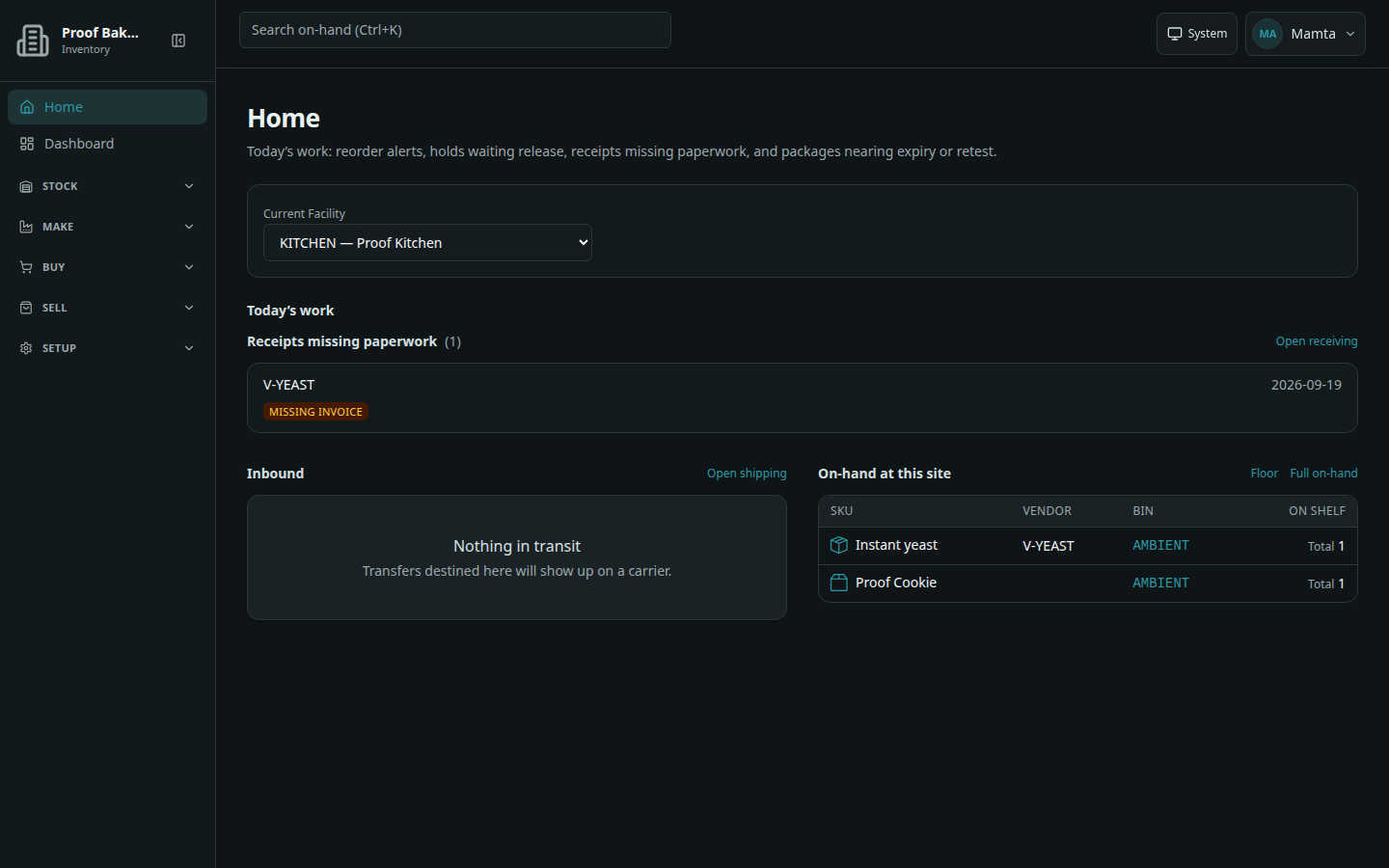
A theme button appears at the top right of the login page, the Create a company page, and every signed-in page. Each click moves to the next setting:
- System — follows your computer’s light or dark setting.
- Light
- Dark
After Dark, the next click returns to System. On wider screens the button shows the current setting as a word; on a phone it shows only an icon. Hover over the button to read, for example, Theme: System (showing dark). Click to change.
Your choice is saved in this browser only. Another browser or device keeps its own setting.