 ReagentFlow
Users
Page title Users. Description on screen (company name varies): People who sign in on [company]. Add by email — they set their own password from the invite. Each person with a job role uses a paid seat. A Viewer without a seat is free.
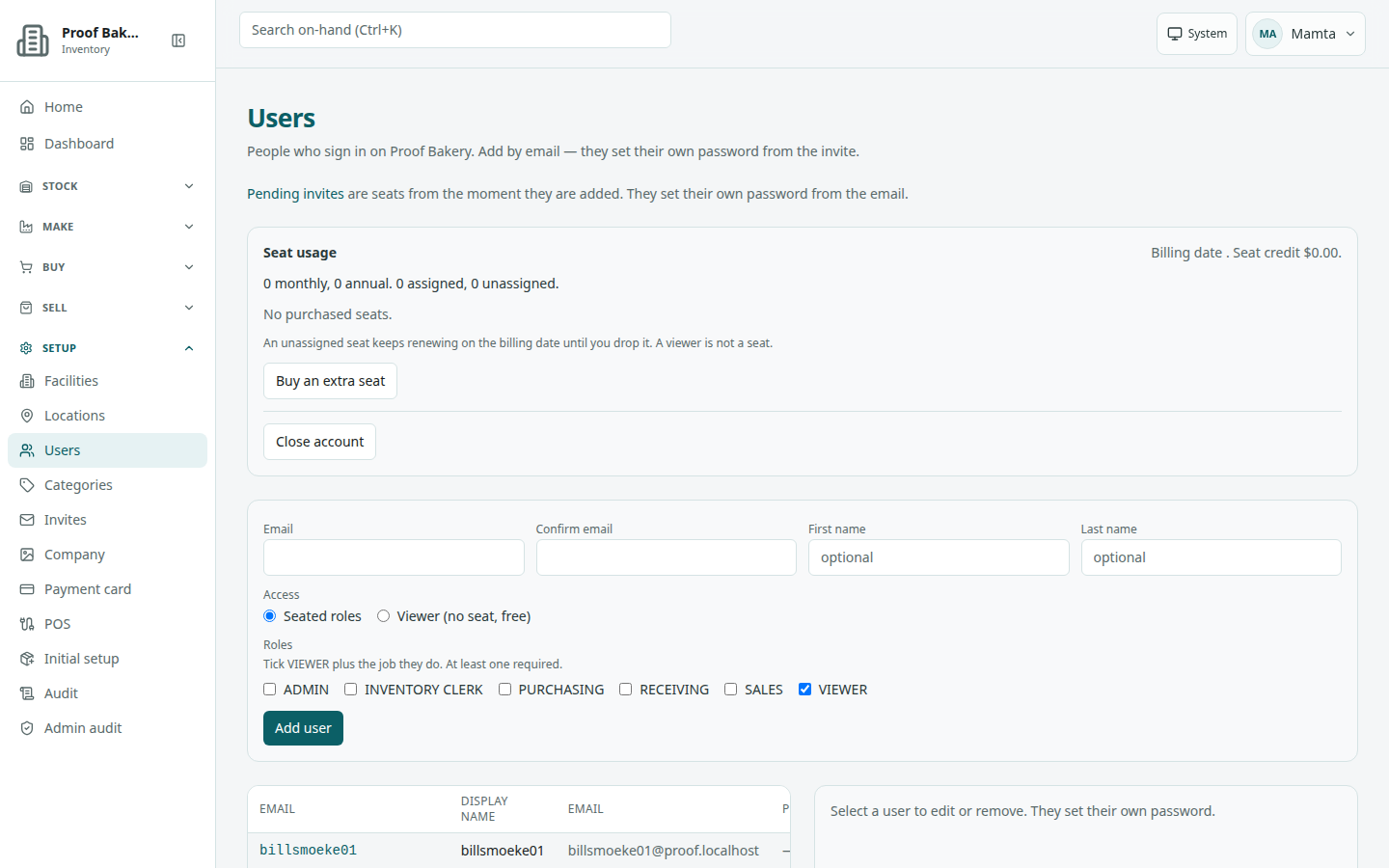
What you see
Loading copy: Loading users… Near the top: Pending invites are seats from the moment they are added. They set their own password from the email. (Pending invites links to Invites.) When invites are pending, a list labeled Pending seats shows each email with Invite pending — seat active since [date].
Below that are the Seat usage panel (see Seats and payment card), the Add user form, and the users table.
The table labeled Users has columns Email, Display name, a second Email column (the directory email, when one is stored), Phone, and Roles. A seat-free Viewer shows the role badge Viewer (no seat). Hint when nothing is selected: Select a user to edit or remove. They set their own password.
Empty company: No users / Invite someone so they can sign in. with Invite user. If the directory cannot be reached: Users unavailable.
Add a person
- Open Setup → Users.
- In the form labeled Add user, type the Email, then type it again in Confirm email. The email is stored in lowercase and becomes the person’s sign-in name.
- Optionally fill First name and Last name (placeholders optional).
- Under Access, choose Seated roles or Viewer (no seat, free).
- For Seated roles, tick roles under Roles (hint: Tick VIEWER plus the job they do. At least one required.). Checkboxes: ADMIN, INVENTORY CLERK, PURCHASING, RECEIVING, SALES, VIEWER. Then pick a Seat plan (Monthly or Annual, with the price when billing provides one). Hint: A seat starts now and is billed on your account’s billing date (prorated).
- For Viewer (no seat, free), read: Viewer (no seat, free) sees only the sales item list. No seat is purchased.
- Choose Add user (it reads Inviting…).
If the emails do not match: Enter the email again. or Email addresses must match.
Success on a password company: Invited [email]. They set their own password from the email link, followed by the link path when the app shows one. The person gets an invite email when outgoing email is turned on; the invite expires in seven days. On a company that uses corporate single sign-on: Added [email]. Corporate SSO is on — they sign in on the face host. No invite email. Their name details fill in from the identity provider when they first sign in.
The seat is active and billed from the moment you choose Add user, even before the person accepts.
When no seat is free
Adding a person with a job role uses an unassigned seat on the same Seat plan you picked on the form. ReagentFlow checks your company’s seats before it creates anything; if no matching seat is free, the person is not added until a seat is bought. When purchase is needed, the form says: Adding a person uses an unassigned seat. If none is free, a new seat must be purchased before they can be added.
- Choose Add user. If no seat is free, the dialog Buy a new seat? opens.
- Set the dialog’s Seat plan to the plan you picked on the form. The dialog always starts on Monthly, so change it when you are adding an Annual seat.
- Choose Yes (it reads Buying…), or No to stop. The new seat is assigned to the person you are adding.
- After the purchase, the app finishes adding the person for you.
If the add is refused for lack of a seat outside the dialog: No unassigned seat. Buy a new seat before this person can be added. If the seat check cannot reach billing, the person is not added and the page shows an error; try again later. Purchase outcomes are explained on Seats and payment card.
A Viewer (no seat, free) is added straight away. No seat check or purchase is involved.
Edit a person
Select a row. The Edit user form has:
- Email — read-only, with Email is the seat key. You cannot change a person’s email. To use a different email, remove the person and add the new address.
- Display name (required)
- Directory email — read-only
- Phone (placeholder Leave blank to clear)
- Postal address — Line 1, Line 2, City, State, Postal code, Country (placeholder US)
- Access and Roles, as on the add form
Choose Save (it reads Saving…). Success: User updated.
Any save that gives a person a job role (ADMIN, INVENTORY CLERK, PURCHASING, RECEIVING, or SALES) needs that person to hold a seat already. If they do not, nothing is changed and Buy a new seat? opens. Buying assigns the new seat to that person, and the save is retried automatically. Choose No to put the roles back as they were.
Moving a Viewer to Seated roles also shows Promoting a Viewer uses a seat. If none is free, a new seat must be purchased.
If you are an admin without a seat of your own and you tick INVENTORY CLERK, PURCHASING, RECEIVING, or SALES on your own row, the app asks Buy a new seat? first. Choose No to leave your roles unchanged.
Send a password reset
Admins no longer type passwords for other people. The Password reset section says: The current password stops working. A reset link will be emailed.
- Select the person.
- Choose Password reset.
- Choose Confirm password reset (it reads Sending reset…), or Cancel reset.
Success: Reset link emailed. The current password no longer works. When outgoing email is off, the message is The current password no longer works. followed by Reset link: [link] for you to pass on, or Email is off, so no link was sent. The person sets a new password from the link (see Reset a forgotten password).
Remove a person
The Remove section says: Deletes this person and their roles. You cannot remove the signed-in account. When the person holds a seat, one more line explains the billing effect:
- You’ll get a seat credit. — a monthly seat inside its first 72 hours.
- This month’s seat payment is not credited. — a monthly seat after 72 hours.
- Prorated daily credit for unused days (fee ÷ days in term × unused days). — an annual seat.
- Select someone who is not you.
- Choose Remove user.
- Choose Confirm remove (it reads Removing…), or Cancel.
Success: User removed. Their session ends and they cannot sign in until an admin adds them again. On your own row, Remove user stays disabled.
Check the Seat usage panel afterwards. Any seat left Unassigned keeps renewing until you drop it (see Drop an unassigned seat).
Global administrators: filter by company
A global administrator who also holds ADMIN, signed in directly (not through a company’s corporate sign-in), sees a different description: System directory users, or one tenant at a time. Tenant admins never see other companies from here. A Tenant filter lists All tenants and each company as Name (slug), and the table gains a Tenant column. An empty company shows No users in this tenant / This company has no directory users yet.
A company admin only ever sees their own company. If a request reaches another company, the page says You don’t have permission to list these users / A tenant admin can only see people in their own company.