 ReagentFlow
Sales
Page title Sales. On a wide screen the description is: Sell from a warehouse or storefront bin. Instant recipes stay listed when nothing is on the shelf yet — on hand and can make come from the server and refresh after each sale. Auto-pick uses the earliest expiry first (undated last). Scan a package to override. Packages still on a carrier stay on Shipping until received, lost, or damaged. On a phone that description is hidden so the list can sit higher.
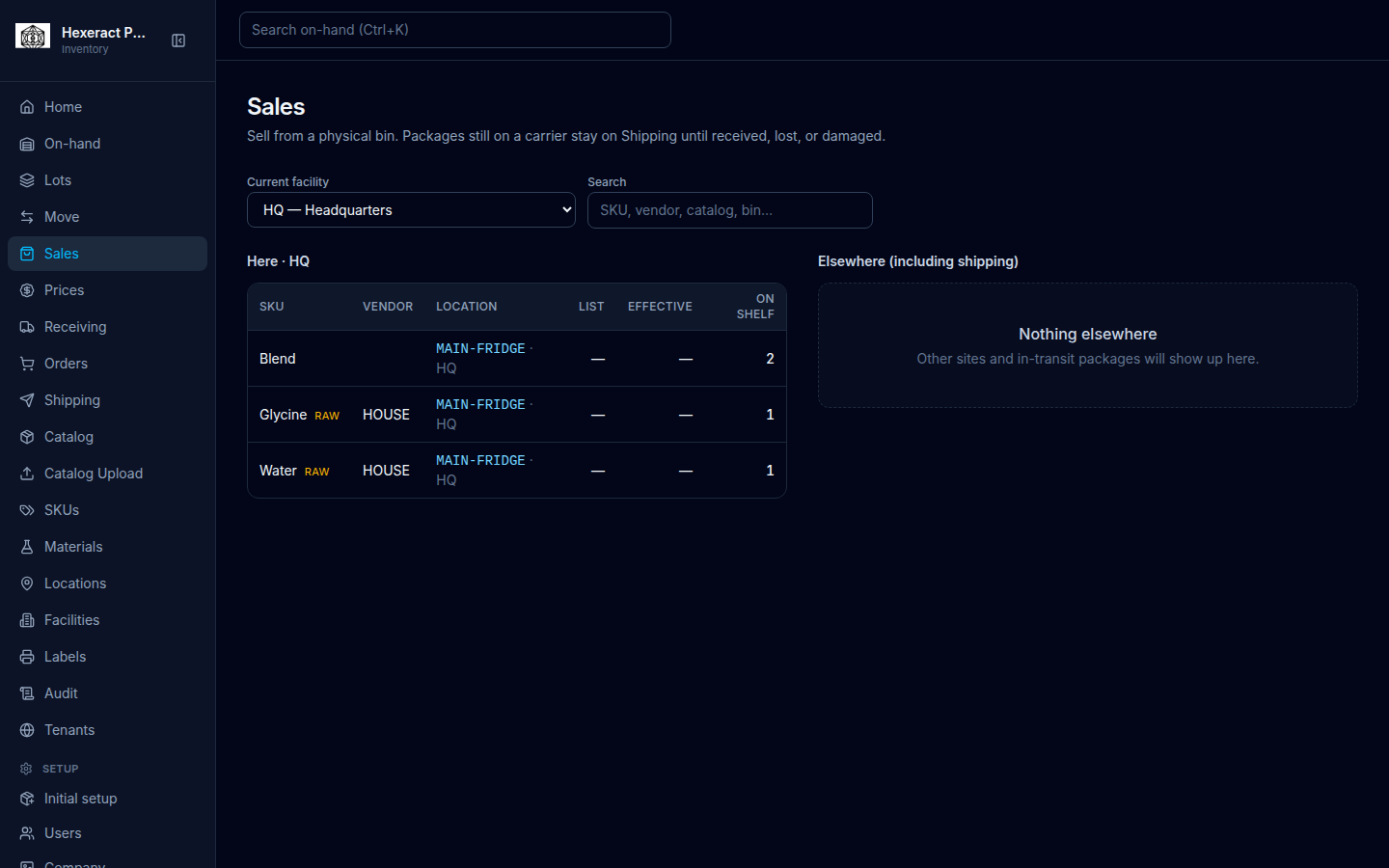
TODO screenshot: recapture Sales with Origin facility, Scan package, and the Instant section with a selected row — route /sales, role SALES.
Pick a site and find stock
- Open Sales.
- Set Origin facility. It lists warehouses and storefronts; a storefront shows (storefront) after its name. Empty: No origin sites.
- Search with placeholder SKU, vendor, catalog, bin… (field label Search), or scan a package into Scan package (placeholder Scan or type item code).
Loading copy: Loading on-hand…
Instant items
A finished item whose recipe is marked Instant (produce at sale) is made at the moment you sell it (see Recipes). The Instant section explains: Finished items with an instant recipe stay here when the shelf is empty. On hand, can make, and can sell come from the server. Selling more than on hand makes the rest, then the other rows refresh.
The table has Item, On hand, Can make, and Can sell. On a phone each item is a card showing [n] on hand · [n] can make and a large can sell number. Other states: Loading instant items… and No instant recipes at this site.
How the list is built:
- It covers the site chosen in Origin facility. The Search field also filters it by item name or code.
- Only finished items with an instant recipe appear, and only when at least one is on hand or can be made from the raw stock at that site. An instant item with neither drops off the list. Finished items without an instant recipe are not listed here; produce them first and sell them from the tables below.
- On hand and Can make are the same numbers Floor and the SKU’s Can make show. Can sell is the two added together.
- The numbers are read fresh each time. When two instant items share a raw ingredient, each shows how many of that item could be made; selling one lowers what the others can make.
- Select an instant item. The panel shows [name] [code] · [n] on hand · [n] can make · [n] can sell, then Bin [code] and, when there is one, Vendor [code].
- Fill Quantity (can sell). You cannot sell more than the can-sell number (Only [n] can be sold).
- Optional: Instant reference (optional) (placeholder Invoice, customer…).
- Choose Record instant sale (it reads Selling…).
Success: Instant sale recorded. Can make on the other items has been refreshed. Making the extra units uses raw stock that other instant items may share, so their numbers can drop too.
You do not pick a bin or vendor for an instant sale:
- Bin is where any units made at the moment of sale are placed: the site’s first active bin by code (package locations are skipped).
- Vendor is suggested for you. It is the vendor already on this item’s units on the shelf; if there are none, the lowest vendor code among its recipe components on the shelf. When no vendor applies, no Vendor line appears and the sale goes ahead without one.
- Nothing to sell yet. On hand and can make are both zero. — no stock and not enough raw to make one.
- This site has no bin for an instant sale. — add a bin at this site on Locations.
- You can see on hand and can make. Recording a sale needs a sales or clerk role.
- If a sale was opened but did not finish, the page says Sale [id] is open and packages are reserved, but it did not complete. and the button changes to Complete open sale. Choose it to finish that sale before selling again.
Desktop (wide window)
Two tables sit side by side:
- Here · the facility code — bins at the origin facility. Empty: Nothing sellable here / Receive stock into a bin at this site to sell it. plus Receive stock for roles that can receive. See empty Sales.
- Elsewhere (including shipping) — other sites and in-transit packages. Empty: Nothing elsewhere / Other sites and in-transit packages will show up here.
Table columns: SKU, Vendor, Location, List, Effective, On shelf. On shelf uses the same held/available split as On-hand. In-transit rows can show a Shipping badge.
Select a row. The sale form stays on the same page under the tables.
Phone layout
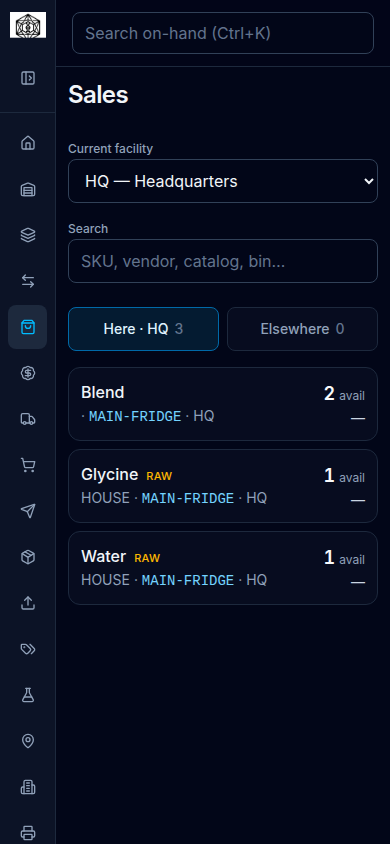
At a phone-sized width (767 pixels wide or narrower) Sales does not use the dense table:
- A two-tab control labeled Stock location switches Here · the facility code and Elsewhere, each with a count.
- Each balance is a tappable card: SKU name (raw SKUs also show a Raw mark), vendor and bin, optional Shipping badge, a large avail number, and the effective (or list) price.
- Tapping a card replaces the list with the sale panel and a Back to list control.
- Quantity (available) is a stepper with Decrease quantity / Increase quantity (capped at available unheld qty).
- Record sale is a full-width control.
Record a sale
The panel repeats SKU · vendor @ location (and facility), then Total [n] and, when anything is held, Held [n] · Available [n]. List and effective prices appear when set. An active promotion shows a [n]% off badge.
- If the row is in transit: In-transit stock is not sellable. Receive it or mark the package lost/damaged on Shipping.
- If nothing is available: Nothing salable here — [held] of [total] on the shelf is/are held. Clerks release holds on Lots.
- Without a selling role: You can look up on-hand here. Recording a sale needs a sales or clerk role.
- Otherwise fill Quantity (available) and optional Reference (optional) (placeholder Invoice, customer…), then Record sale (it reads Selling…).
Success: Sale recorded. [available] available of [on-shelf] on shelf. A sale cannot exceed available unheld quantity (Only [count] available (unheld) to sell).
Which packages leave the shelf
Under the form, a pick list shows the packages in order with the caption Auto-pick: earliest expiry first (undated last). Scan or use a package to override. Tick Show held to include held packages in the list.
- Scan a package into Scan package, or choose a package in the list, to sell that exact one. Each scan adds a code chip with Remove, and the page says Quantity matches scanned packages. Remove a scan to change it.
- If the package is not the next auto-pick: Override — not the next pick. The server records PICK_OVERRIDE.
- If the scanned package is somewhere else: [code] is [SKU] at [bin], which is not in this on-hand list.
- Packages that are past their expiry or retest date cannot be sold.