 ReagentFlow
SKUs
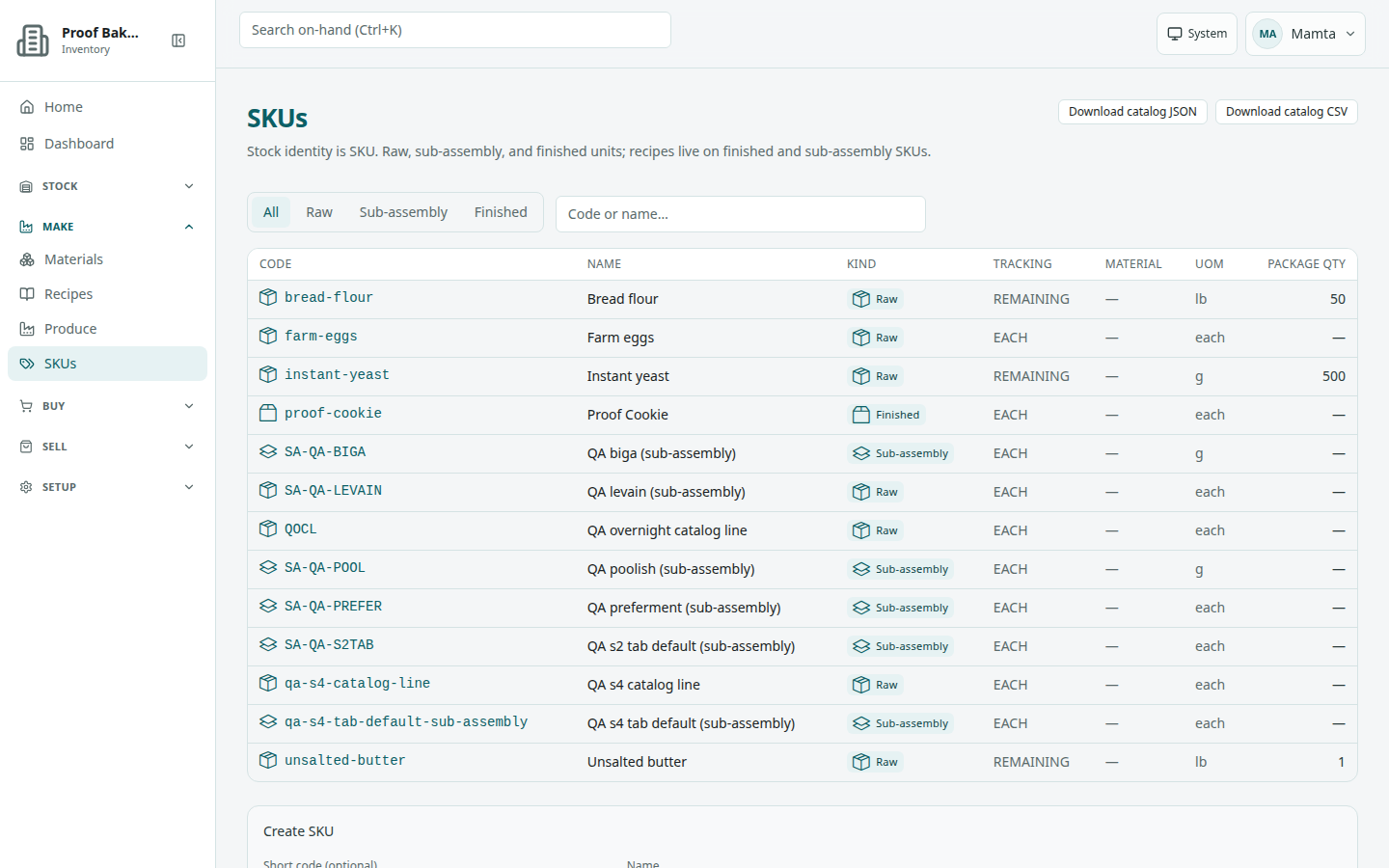
Page title SKUs. Description on screen: Stock identity is SKU. Raw, sub-assembly, and finished units; recipes live on finished and sub-assembly SKUs.
/skus).Kinds of SKU
- Raw — bought-in stock you receive.
- Sub-assembly — made from a recipe and used in other recipes.
- Finished — made from a recipe and sold. Only finished SKUs appear on selling screens.
Browse
- Open SKUs.
- Use the kind tabs: All, Raw, Sub-assembly, Finished.
- Filter with placeholder Code or name…. The filter also matches descriptions and material names.
- Open a row by its Code or Name to reach the detail page.
Table columns: Code, Name (with a photo thumbnail when the SKU has a catalog photo), Kind (Raw, Sub-assembly, or Finished), Tracking (EACH or REMAINING), Material, UOM, Package qty.
Download catalog JSON and Download catalog CSV (they read Downloading…) save your catalog, including SKU descriptions and every catalog photo. On failure: Catalog dump failed. The same buttons are on the Catalog page.
Empty state: No SKUs — writers see Create a raw, sub-assembly, or finished SKU to start.; others see Nothing in the SKU list yet.
Create a SKU
Writers get a Create SKU form:
- Short code (optional; placeholder YST, FL-BRD) — Short code for scanning/lookup — YST, FL-BRD
- Name (required; placeholder Display name)
- Kind — Raw, Sub-assembly, or Finished. It starts on the kind of the tab you have open (Raw on All).
- Tracking — EACH or REMAINING
- Base UOM (required)
- Package quantity — required when tracking is REMAINING. Hint for raw remaining: Package quantity is how much is in one bag or bottle — e.g. 50 for a 50 lb bag.
- Description — Catalog copy for this SKU. Included in the catalog dump for every kind. Up to 2000 characters, with a live count.
- Catalog photo — drag a photo onto the frame or choose Choose photo: Drag a photo here or choose a file. png, jpeg, webp, or gif, up to 10 MB. It uploads when you create the SKU. Smaller images load faster. Optional Photo caption.
- Materials (optional) — pick one in Select material… and choose Add material. Repeat for more. Reorder with the up and down buttons; remove with the remove button. With none: No materials attached.
Multi-item kits
The form explains: Multi-item kits use Remaining tracking and Each as the unit of measure. Package quantity is how many pieces come in one kit. There is no Kit kind — keep Kind as Raw.
For a raw SKU, tick Multi-item kit (Suggest Remaining tracking and Each as the unit. Count remaining pieces in the kit. This is not a Kit kind.). The package hint changes to Package quantity is how many pieces come in one kit — e.g. 10 for a 10-piece kit.
Choose Create SKU (it reads Creating…). The app opens the new SKU. For finished and sub-assembly SKUs the form also says: After you create this SKU, add a recipe on the detail page. See Recipes.
SKU detail
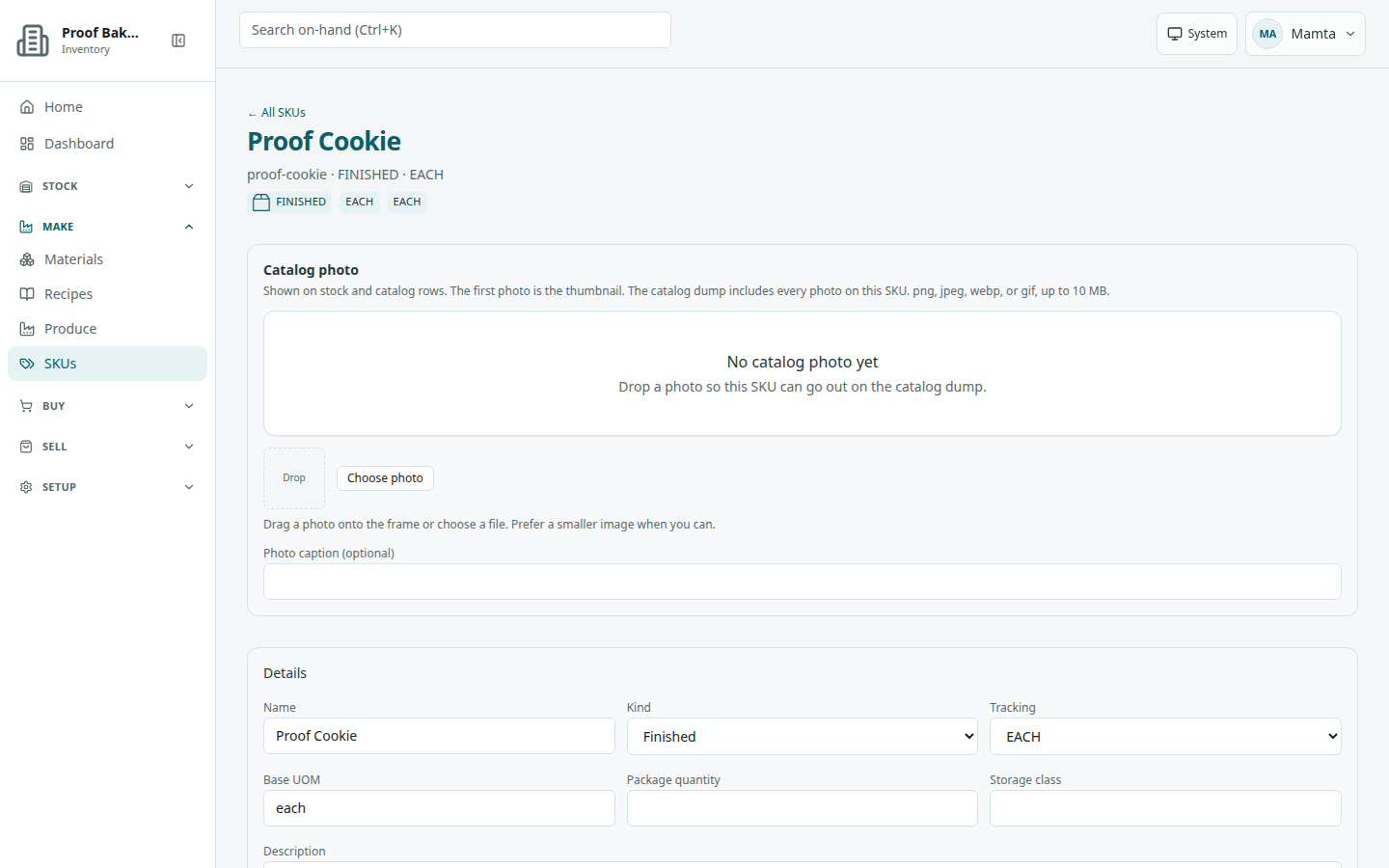
The detail title is the SKU name, with [code] · [kind] · [tracking] under it and an Instant badge for instant recipes.
Catalog photo
Section Catalog photo: Shown on stock and catalog rows. The first photo is the thumbnail. The catalog dump includes every photo on this SKU. png, jpeg, webp, or gif, up to 10 MB.
- Add: drag a photo onto the frame or choose Choose photo (Drag a photo onto the frame or choose a file. Prefer a smaller image when you can.). Optional Photo caption. It reads Uploading… while it runs.
- Replace: Replace photo (it reads Replacing…).
- Remove: Remove photo, then Confirm remove or Keep.
Empty: No catalog photo yet — writers see Drop a photo so this SKU can go out on the catalog dump.; others see No catalog photo is attached yet.
Details
Writers edit Name, Kind, Tracking, Base UOM, Package quantity, Storage class, Description, Serial template override (placeholder Tenant default if blank), and for raw SKUs RAW tag mode (Tenant default, Each received item, or One bulk tag). Then choose Save SKU (it reads Saving…; success Saved.).
Others see Package qty, Storage, Description, Build time (recipe SKUs), and Materials.
Item labels
The Item labels box: Produce, receive, and on-hand reprint use the saved settings. Save the SKU to apply a change.
- Print a serial label — Print the item code for units of this SKU.
- Label each item — On: one label per unit. Off: one label for the batch. With the serial label off, the item code is left off the print.
These settings apply to finished and sub-assembly items when you produce them and when you reprint a label later. Label each item only changes how many labels print; produce makes the same number of units either way. Turning off Print a serial label leaves the code off the printed label, but each unit keeps its item code for scanning and lookup.
The company-wide defaults are on Company → Item labeling.
Materials
In the edit form, Materials uses the same picker as the create form: Order is saved with the SKU. Remove a material and save to detach it.
On finished and sub-assembly SKUs, a second Materials section rolls up everything in the item: Direct materials are edited above. Recipe materials are included unless that line is marked “Do not include in resulting SKU”. Each material shows where it came from: Direct, from [SKU] → [SKU], or from a recipe line. With none: No materials on this SKU.
- Direct materials come first, in the order you saved them. Materials from the recipe follow, in recipe line order, and reach down through sub-assemblies to their own materials.
- A material that turns up more than once is listed once, at its first position.
- A recipe line marked Do not include in resulting SKU is left out, along with everything under it.
- The roll-up is worked out each time you open the SKU, so it follows changes to recipes and to the component SKUs.
When the SKU has an ingredient statement, an Ingredients section shows it. The ingredient list uses the same materials in the same order; it is not sorted by weight. See INCI names and calories.
Recipe, produce, and labels
Finished and sub-assembly SKUs have a Recipe section, Can make, Produce units, and On-hand item labels. See Recipes.
Add packages to on-hand (raw SKUs)
Raw SKUs have Add packages to on-hand: Posts opening stock for this SKU (package count, not a vendor receipt). Admins and inventory clerks pick Location and Vendor, enter Package count, and choose Add packages (it reads Adding packages…). Success: Packages added to on-hand. If there is no vendor yet, a Create vendor form (Vendor code, Vendor name) appears for admins and purchasing.