 ReagentFlow
Tenants
Page title Tenants. Description on screen: Global-admin only. Suspend keeps data. Cancel starts a 90-day purge timer. There is no hard delete. Enter a tenant to work in its inventory while staying signed in as yourself — this is not login-as.
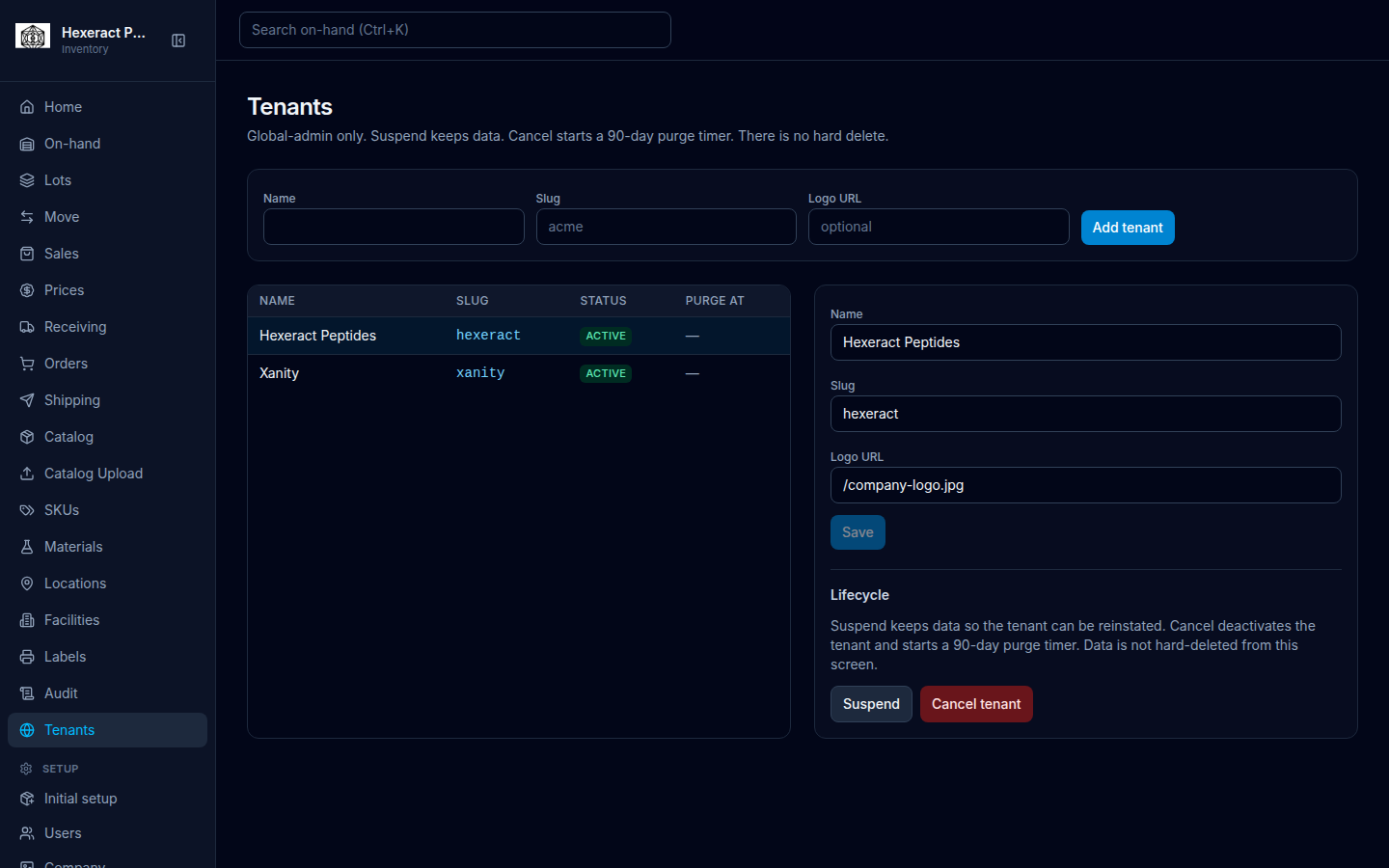
TODO screenshot: recapture Tenants showing the Add tenant form (Billing provider, Use corporate SSO), the Work in column, and a selected tenant with Provider changes — route /tenants, role GLOBAL_ADMIN.
Add a tenant
- Open Admin → Tenants.
- In the form labeled Add tenant, fill Name and Slug (stored lowercase; placeholder acme).
- Optional: add a logo. Either type a Logo URL (placeholder optional) or choose a Logo file. Hint: PNG, JPEG, WebP, GIF, or SVG. 2 MB max. A file replaces Logo URL.
- Choose the Billing provider. Stripe is selected first; choose Null for a company that is not charged. See Billing provider.
- Leave Use corporate SSO clear for a normal company. Tick it only for a company that signs in through its own identity provider (see Corporate SSO).
- Choose Add tenant (it reads Saving…).
Adding a tenant also registers the company with billing, under the same name and the provider you chose. If billing cannot be reached, the tenant is not created and the form shows Billing service is unavailable; try again later.
Success: Tenant [name] created. Empty list: No tenants / Add a company with a DNS-label slug.
Companies can also create themselves on the public Create a company page.
Billing provider
Billing provider decides how a company’s seats are charged. New companies start on Stripe. No payment keys are entered on this screen.
- Stripe — seats are charged to the company’s card (see Seats and payment card).
- Null — no charge.
The provider shown for each company is the one billing has on record. On a selected tenant, the field reads Not reported when billing has no record for that company. Choosing a provider for such a company is refused with Billing has no tenant for this company.
Under the field, Provider changes lists each change as [who] · [when] · [from] → [to], or No provider changes yet. Each change is also recorded in the audit log.
Corporate SSO
Use corporate SSO is for rare, very large customers that sign in through their own identity provider. Help on the add form: GLOBAL_ADMIN only. Rare — extremely large customers. Tenant admins cannot turn this on. Checked skips invite email; they sign in on the face host.
- Tick Use corporate SSO.
- In SSO face hostnames (optional; placeholder login.acme.example), enter the company’s sign-in hostname. Put one hostname per line. A face hostname is only a sign-in entry: people sign in there and are then handed back to the ReagentFlow app.
- Choose Add tenant or Save.
On a selected tenant the help reads: GLOBAL_ADMIN only. Enabling requires at least one face host. Uncheck does not remove Dex faces. To remove every face: Clear the field and save to remove every face. Leaving the field unchanged keeps existing faces.
After save, the selected tenant lists bound faces (list labeled SSO faces) with status PROVISIONED, NOOP, or DEPROVISIONED. When none are bound: No corporate SSO faces bound.
Errors the form may show: That SSO face hostname is already bound to another tenant; That Dex client_id is already bound to another tenant; Dex could not provision the SSO face. The tenant change was not saved.
Review and edit
The table columns are Name, Slug, Status, Purge at, and Work in. Select a row. The form labeled Update tenant has Name, Slug, Logo URL (placeholder Blank clears the logo), Use corporate SSO, SSO face hostnames, Billing provider, Provider changes, and Save (it reads Saving…). Until you select a row, the panel says: Select a tenant to update, suspend, reinstate, or cancel. Success after save: Tenant updated.
A new Name is also sent to billing, so the billing record keeps the same company name. If billing cannot be reached, the change is not saved and the form shows Billing service is unavailable.
Work in a tenant
You can work in a company’s inventory while staying signed in as yourself. This is not login-as and does not copy passwords.
- In the Work in column, choose Enter on the row. Or select the row and, under Operator context, choose Enter [name] (it reads Entering…).
- Success: Working in [company]. You stay signed in as yourself. The row shows a Working badge.
- While you work in a company, a banner at the top of every page shows Working, the company, and Leave. It says You stay signed in as yourself. This is not login-as.
- To stop, choose Leave in the banner, or Leave [name] under Operator context. Success: Left the working tenant.
A suspended company opens read-only. The banner adds Read-only and says This tenant is suspended. You can look around; writes are blocked until you reinstate it. You stay signed in as yourself — this is not login-as. Under Operator context: [name] is suspended. Enter is read-only until you reinstate it.
The working banner is not shown when you signed in through a corporate SSO page.
Lifecycle
The Lifecycle section repeats: suspend keeps data so the tenant can be reinstated; cancel deactivates the tenant and starts a 90-day purge timer; data is not hard-deleted from this screen.
- Suspend (Suspending…) — success: Tenant suspended. Data is kept.
- Reinstate (Reinstating…) — success: Tenant reinstated.
- Cancel tenant — arms confirmation Confirm cancel (90-day purge) or Keep tenant. Success: Tenant cancelled. A 90-day purge timer has started (purge at [time]).
Suspend, reinstate, and cancel also update the company’s status in billing (suspended, active, or cancelled). If billing cannot be reached, the status change is not saved and the page shows Billing service is unavailable; the company keeps its previous status.
Company name, logo, and floor settings for the tenant you are working in are edited on Setup → Company.