 ReagentFlow
Materials
Page title Materials. Description on screen: Generic substance identity (SDS, CAS, INCI). SKUs point here; this is not on-hand quantity.
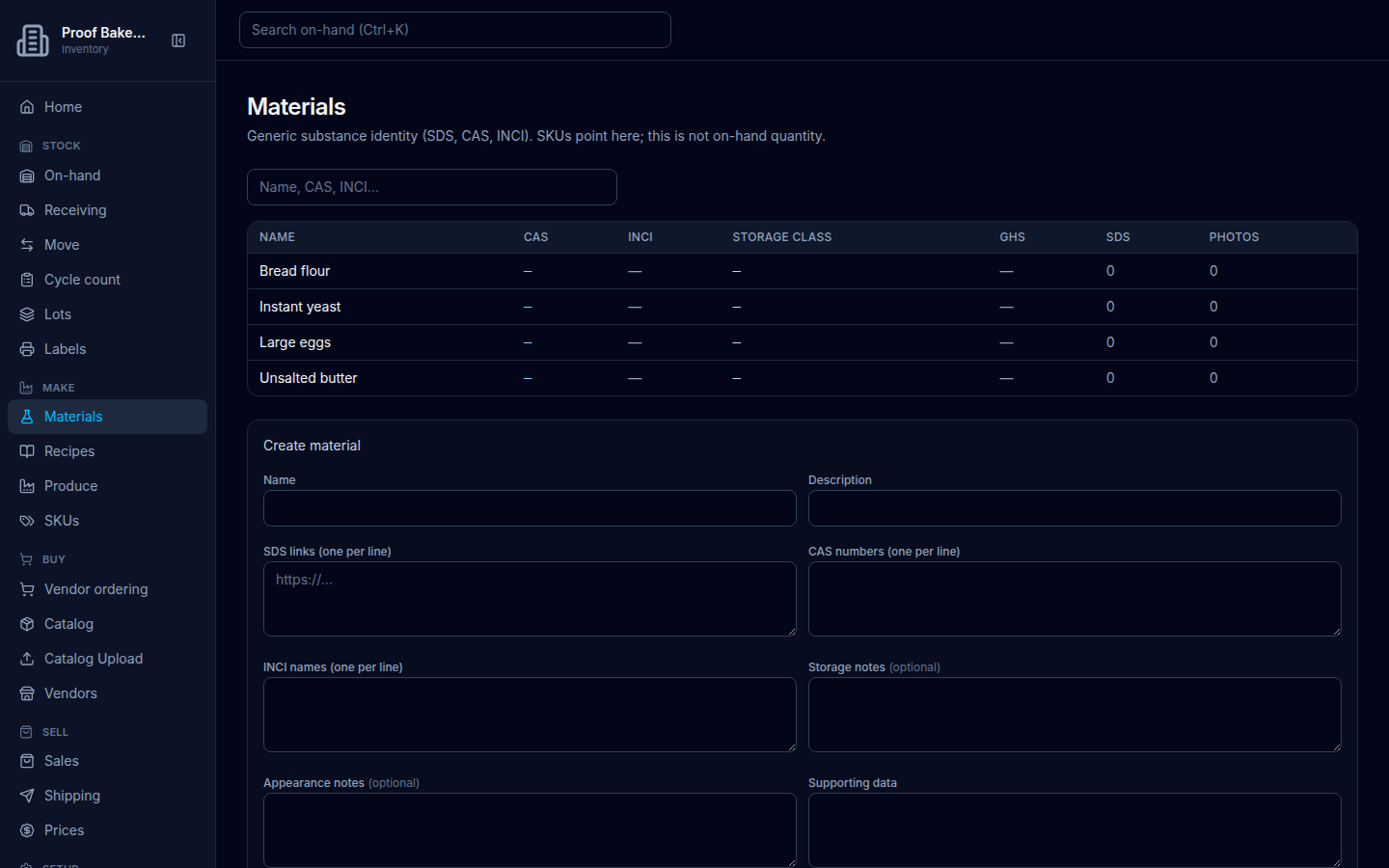
Browse
- Open Materials.
- Search with placeholder Name, CAS, INCI….
- Open a material Name to reach its detail page.
Table columns: Name, CAS, INCI, Storage class, GHS, SDS (count of links), Photos (count of gallery photos).
Empty state: No materials — writers see Create a material, then link it from a SKU. To start from a ready-made list, load a pack from the Pack store at the bottom of this page.
Create a material
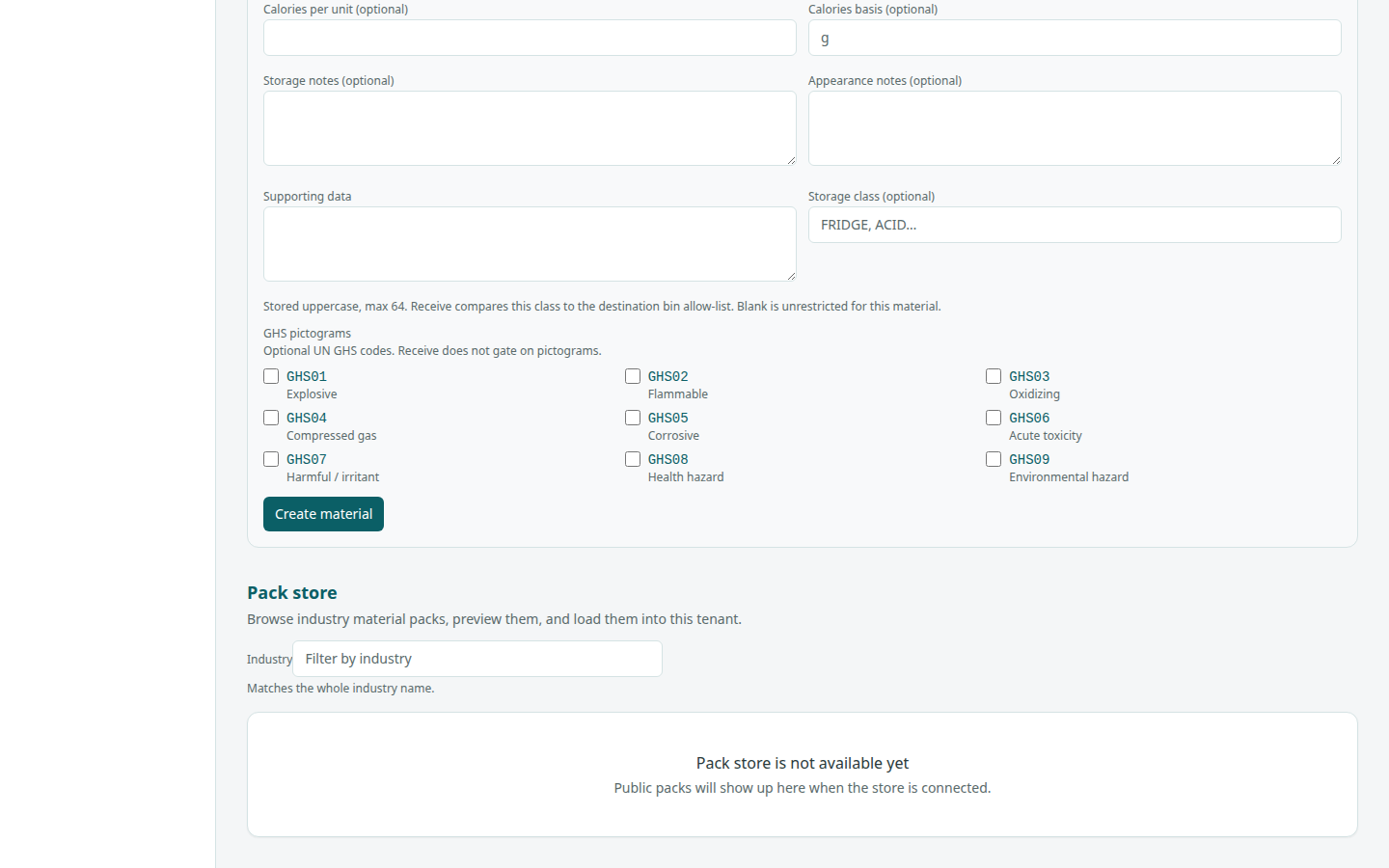
Writers get a Create material form with Name (required), Description, SDS links (one per line), CAS numbers (one per line), INCI names (one per line), Calories per unit and Calories basis (optional), Storage notes (optional), Appearance notes (optional), Supporting data, Storage class (optional), and GHS pictograms. Choose Create material (it reads Creating…). The app then opens the new material’s detail page.
INCI names and calories
These fields feed the ingredient list printed on item labels and shown on SKU detail.
- INCI names (one per line) — under the field: Label INCI: [first name] (or none yet). The first name is the cosmetic label name. On detail it adds Leave the list empty when there is no INCI. Put the name you want on the label first.
- Calories per unit — optional kcal for one basis unit. Calories basis (placeholder g) is that unit. Help on detail: Optional kcal for one basis unit, the same unit word as the component SKU. Blank leaves a saved amount. A typed 0 is zero, not missing. This is not a nutrition facts panel.
Whether labels use the INCI name or the material name is set on Company → Ingredient list. On a SKU, the Ingredients section shows Ingredients: …. If a material has no INCI, it says Incomplete — missing INCI. The material name is shown for that line. No INCI was invented. Calculated calories show as Calories (calculated): … (or Incomplete) with Calculated. Not a nutrition facts panel.
How the ingredient list is built
The list uses the SKU’s rolled-up materials (see SKUs → Materials): direct materials first in their saved order, then materials from recipe lines in line order. It is not sorted by weight. Each material contributes its first INCI name in cosmetic mode, or its material name in food mode.
How calories are calculated
Calories are worked out for finished and sub-assembly SKUs from their recipes. For each recipe line, the line quantity is multiplied by Calories per unit for each material on the component SKU, and the results are added up, including lines inside sub-assemblies.
- Calories basis must be the same unit word as the component SKU’s base unit (for example g for a SKU counted in g). Units are not converted.
- If any material involved has no calories, or its basis does not match, the total shows Incomplete instead of a partial number. It also shows Incomplete when no recipe component has a material attached.
- Lines marked Do not include in resulting SKU are skipped.
- Materials attached directly to the finished SKU (not through a recipe line) do not add calories.
Storage class and GHS pictograms
- Storage class (placeholder FRIDGE, ACID…) — Stored uppercase, max 64. Receive compares this class to the destination bin allow-list. Blank is unrestricted for this material.
- GHS pictograms — tick any of GHS01 Explosive, GHS02 Flammable, GHS03 Oxidizing, GHS04 Compressed gas, GHS05 Corrosive, GHS06 Acute toxicity, GHS07 Harmful / irritant, GHS08 Health hazard, GHS09 Environmental hazard. Help: Optional UN GHS codes. Receive does not gate on pictograms.
Material detail
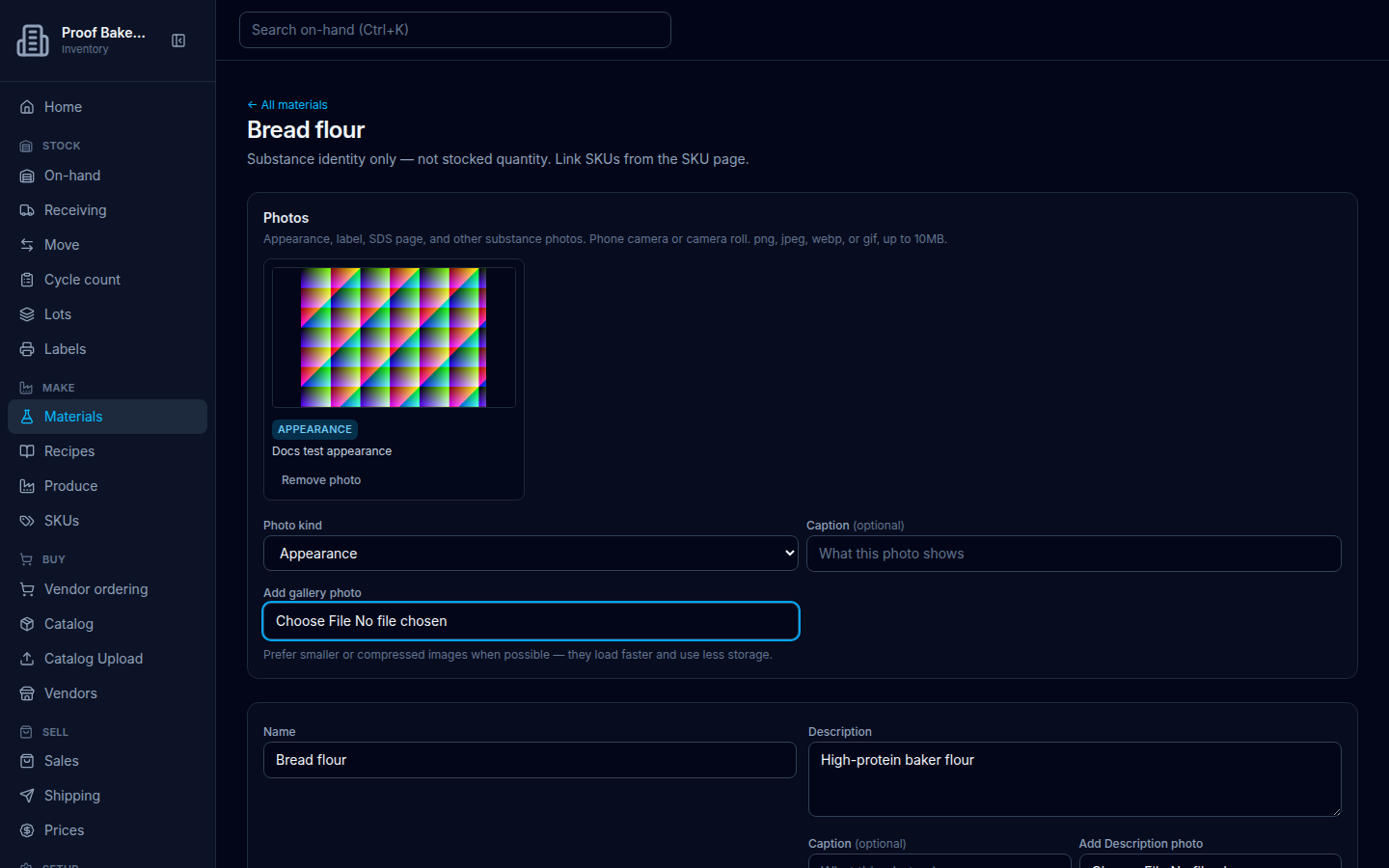
Detail title is the material name. Description on screen: Substance identity only — not stocked quantity. Link SKUs from the SKU page. Use ← All materials to return to the list.
The read-only view lists Description, CAS, INCI (with Label INCI:), Calories per unit (for example 4 / g), SDS, Storage notes, Appearance notes, Supporting data, Storage class, and GHS pictograms. Writers edit the same fields and choose Save material (it reads Saving…). On-screen note: Saving an empty description, notes, or supporting data clears it. Empty list fields clear SDS, CAS, INCI, and GHS pictograms. Blank storage class clears it. There is no delete.
Photos
At the top of the detail page, the Photos section holds appearance, label, SDS page, and other substance photos. On-screen help: Appearance, label, SDS page, and other substance photos. Phone camera or camera roll. png, jpeg, webp, or gif, up to 10MB.
Empty state title No photos yet. Writers see Add an appearance, label, SDS page, or other photo of this substance. Viewers see No substance photos are attached yet.
Add a gallery photo
- Set Photo kind to Appearance, Label, SDS page, or Other.
- Optionally enter Caption (optional) (placeholder What this photo shows).
- Choose a file under Add gallery photo (png, jpeg, webp, or gif).
While the upload runs: Uploading…. Hint under the fields: Prefer smaller or compressed images when possible — they load faster and use less storage.
If the file is over 10MB, the app blocks it with Photo must be at most 10MB. Wrong types show Use png, jpeg, webp, or gif. Files larger than about 2MB (but still under 10MB) may show a warning: This photo is large. Smaller or compressed images load faster and use less storage.
Each card shows a kind badge (for example APPEARANCE), the caption or No caption, and for writers Remove photo (then Confirm remove or Keep).
View a photo (lightbox)
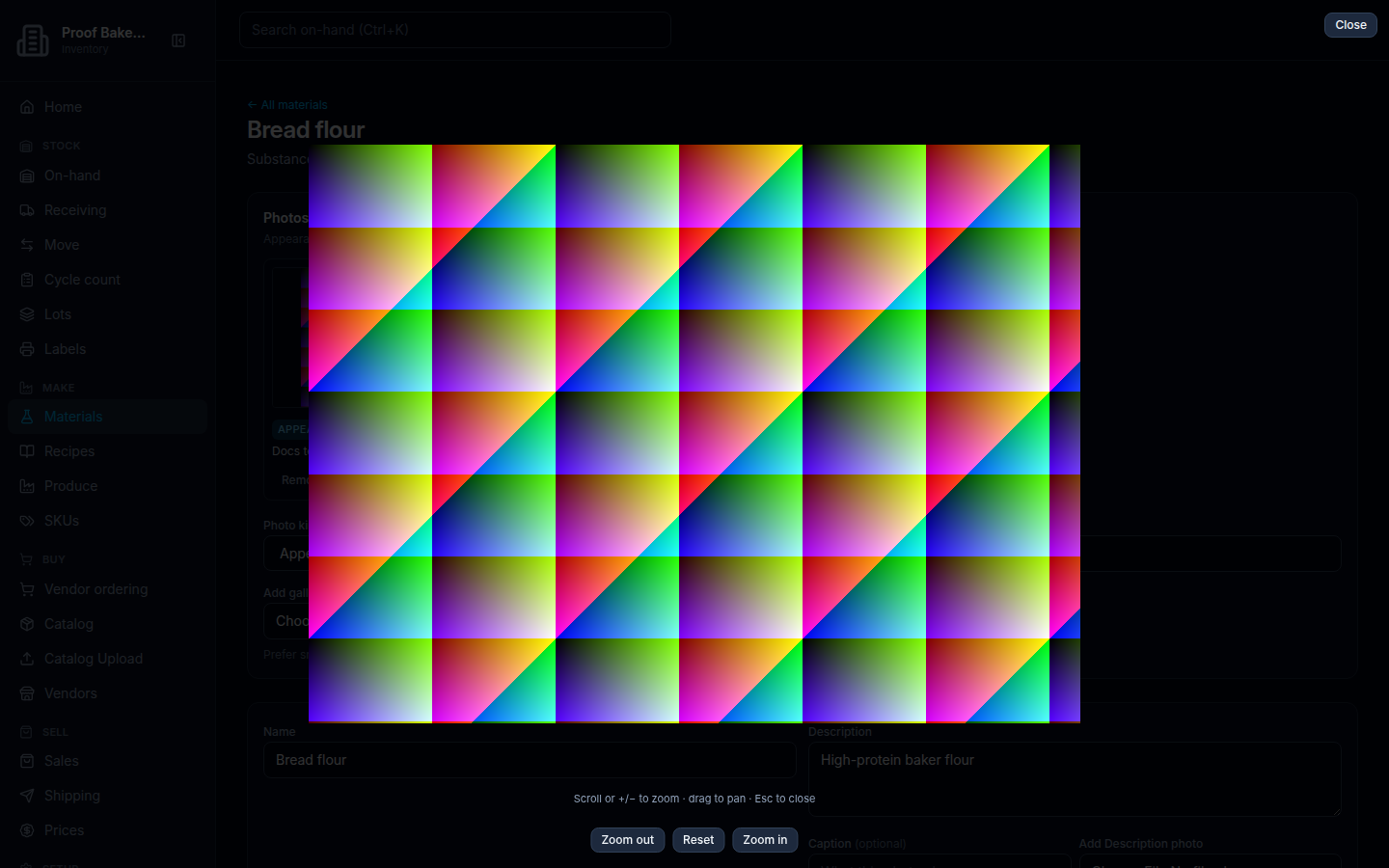
- Choose a thumbnail. The full photo opens in a dialog.
- Use Zoom in, Zoom out, and Reset, or scroll / + − to zoom and drag to pan.
- Choose Close or press Esc.
On-screen tip: Scroll or +/− to zoom · drag to pan · Esc to close.
Field photos and SKU strip
Writers can also attach field photos next to long-text fields with labels Add Description photo, Add SDS photo, Add Storage notes photo, and Add Appearance notes photo.
Pack store
The bottom of the Materials list has the Pack store, where you can load an industry material pack into your company or publish your own. See Material packs.