 ReagentFlow
Sign in
The login page (/login) always shows the product mark, title ReagentFlow, and subtitle Inventory & Catalog. What sits under it depends on how your company signs in: provider buttons (single sign-on) or an email-and-password form.
Sign in with a provider (single sign-on)
- Open the app. If you are not signed in, you land on the login page.
- Read the hint: Sign in with company SSO, or Google or Apple if offered. MFA is enforced by your identity provider. Without an inventory seat you cannot sign in — a company admin must grant a seat.
- Choose the button your company uses. Only the providers your company offers appear:
- Use email address to login — your company’s sign-in page (this button used to read “Sign in with SSO”).
- Continue with Google
- Continue with Apple
- Sign in with SAML
- Finish sign-in on the provider’s page, including any MFA prompt. You come back to ReagentFlow in the same browser tab.
Continue with Google always shows Google’s account chooser, so you can pick the right Google account even if another one is already signed in to the browser. If you arrive from an accepted invite, Google is also given the invited email as a hint.
Google sign-in does not accept a pending invite. Accept an invite by signing in directly through the invite link (see Invites).
Companies that use corporate single sign-on start on their own sign-in page. After it hands you back, ReagentFlow briefly shows Completing sign-in… before the app opens.
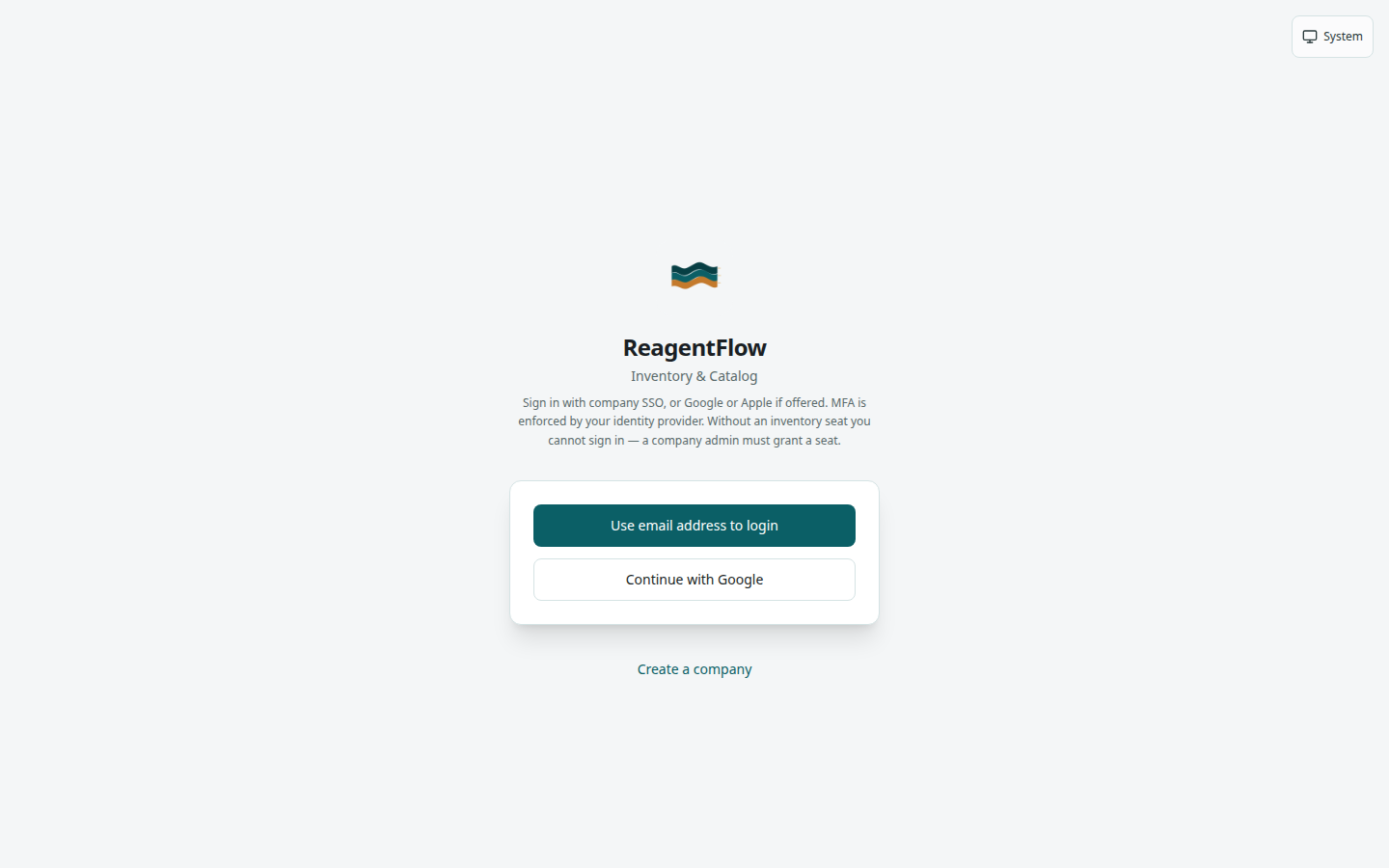
/login). The theme button sits in the top-right corner.Sign in with email and password
Some companies use ReagentFlow accounts with a password instead of single sign-on. The hint under the title then reads Email is not case-sensitive.
- Type your email in Use email address to login.
- Type your Password.
- Choose Sign in (it reads Signing in… while it runs).
If you forgot the password, choose Forgot password under the button.
TODO screenshot: login page in email-and-password mode with Use email address to login, Password, Sign in, and Forgot password — route /login, signed out.
Reset a forgotten password
This works for accounts that have a ReagentFlow password. People who sign in only through single sign-on, Google, or Apple manage their password with that provider.
- On the login page choose Forgot password. The page subtitle changes to Reset password.
- Type your email in Use email address to login.
- Choose Send reset link (it reads Sending…).
- Read the result: If that email has a local account, we sent a reset link. The same sentence appears whether or not the email has an account.
- Open the link from the email. On the reset form, fill New password and Confirm password, then choose Set password (it reads Saving…).
Success: Password updated. Sign in with your email. with a Sign in button. If the two passwords differ: Password and confirmation do not match. Use Back to sign in to leave the request form.
A reset link works once, for seven days, and only on the company it was issued for. Otherwise the page says: This reset link is used, expired, or for a different company. Request a new one from the sign-in page.
When outgoing email is turned off for your installation, no email is sent. For an account that exists, the page shows the link directly as Copy this link: followed by the link.
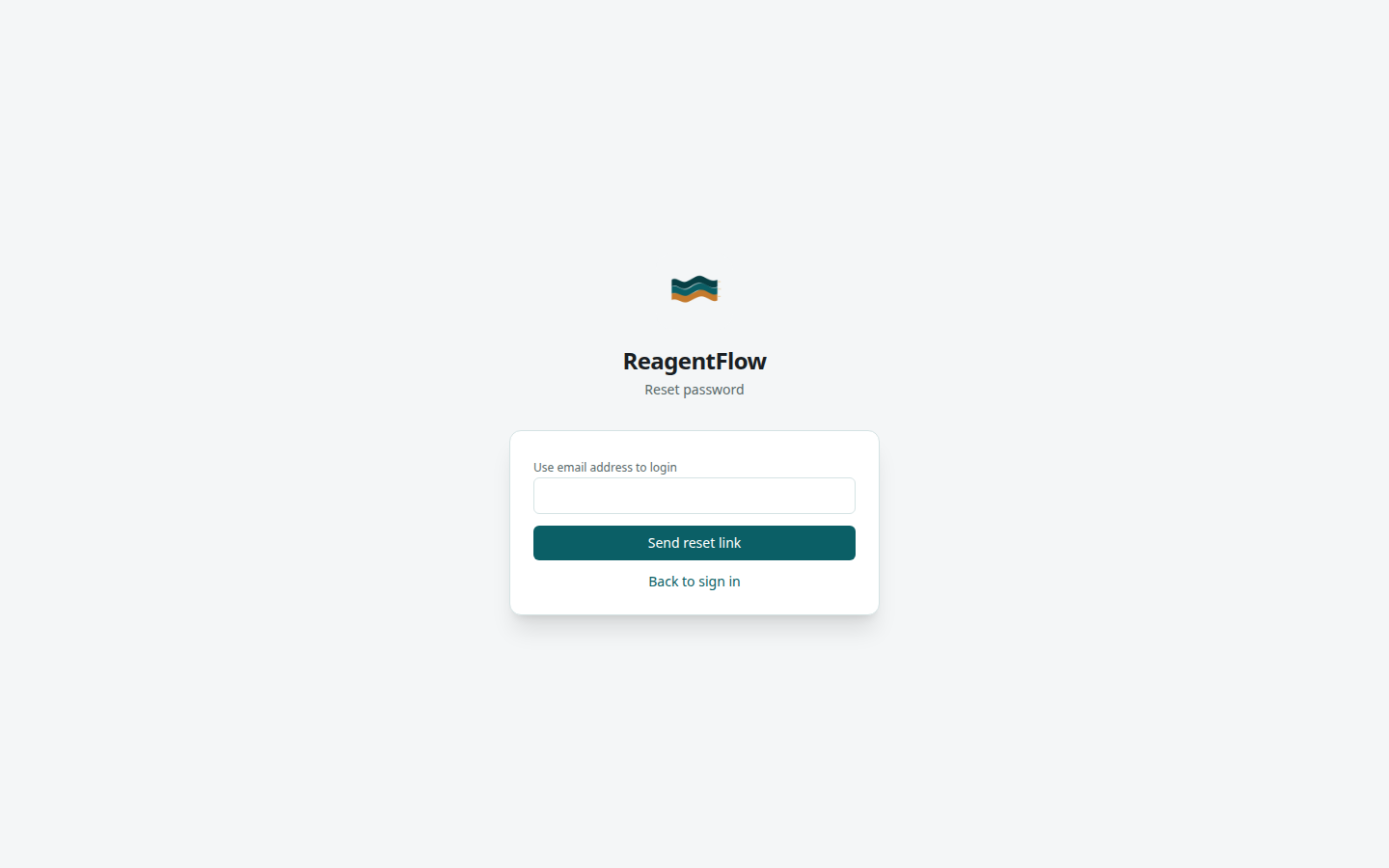
/reset-password). The new-password form opens from the emailed link.You need a seat first
Signing in only opens inventory when you hold a seat at that company. A company admin adds you on Setup → Users or Invites. For password accounts, open the invite email and set your password first. For companies on corporate single sign-on there is no invite email — sign in on your company’s sign-in page.
A person added as Viewer (no seat, free) can sign in too, but only sees the sales item list (see Sales items).
If your identity provider signs you in but you have no seat, ReagentFlow does not start a session. You come back to this page with an alert.
When sign-in comes back with an alert
After a failed single sign-on handoff the app sends you back to /login with an alert above the provider buttons. The alert stays on screen, but a refresh does not bring it back. The provider buttons stay available so you can try again.
No inventory seat
Alert text: This account has no inventory seat. Ask a company admin to add you or grant a seat.
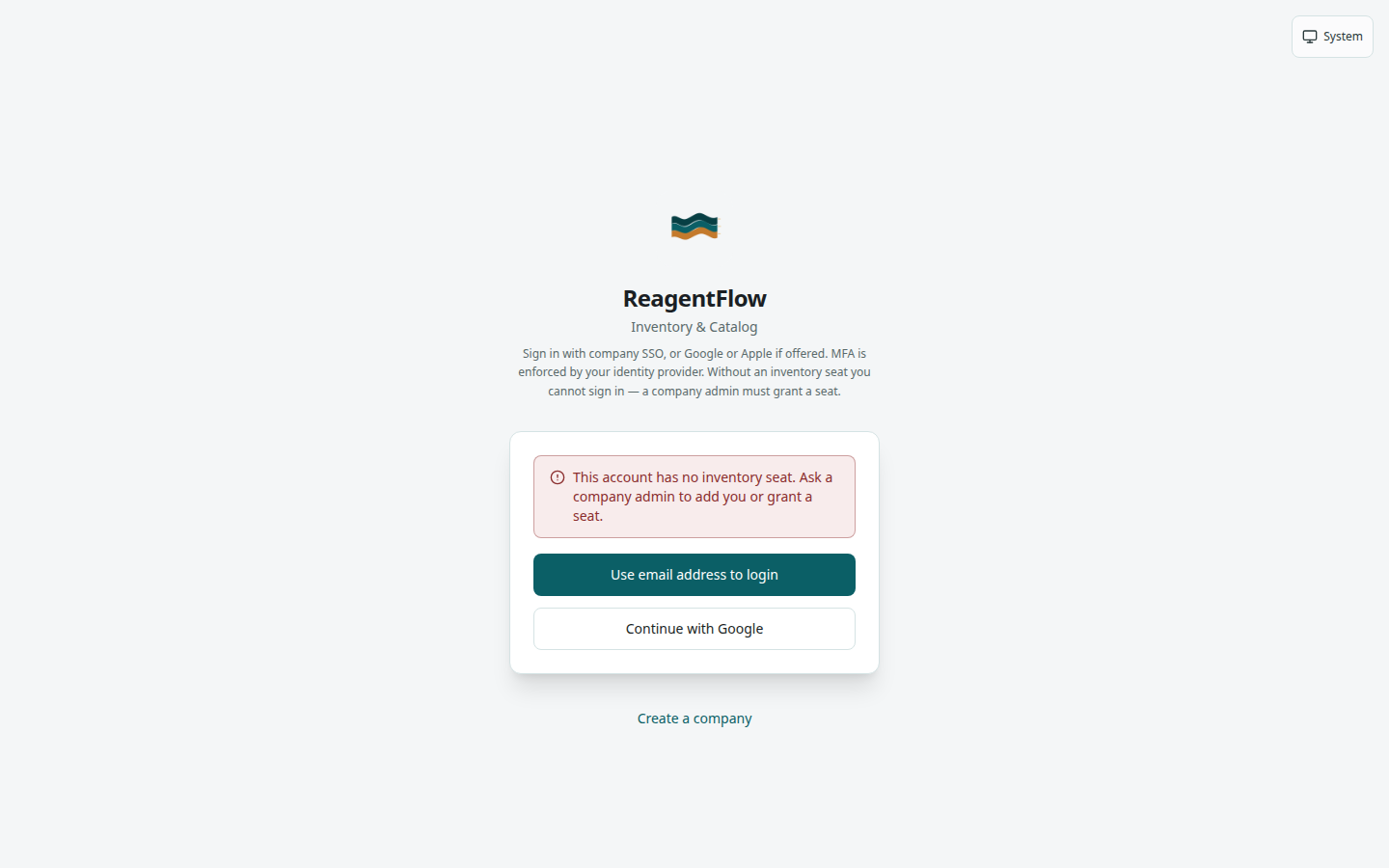
Sign-in failed
Alert text: Sign-in failed. Try again or contact your admin. The same message appears for other failed handoffs, not only a missing seat.
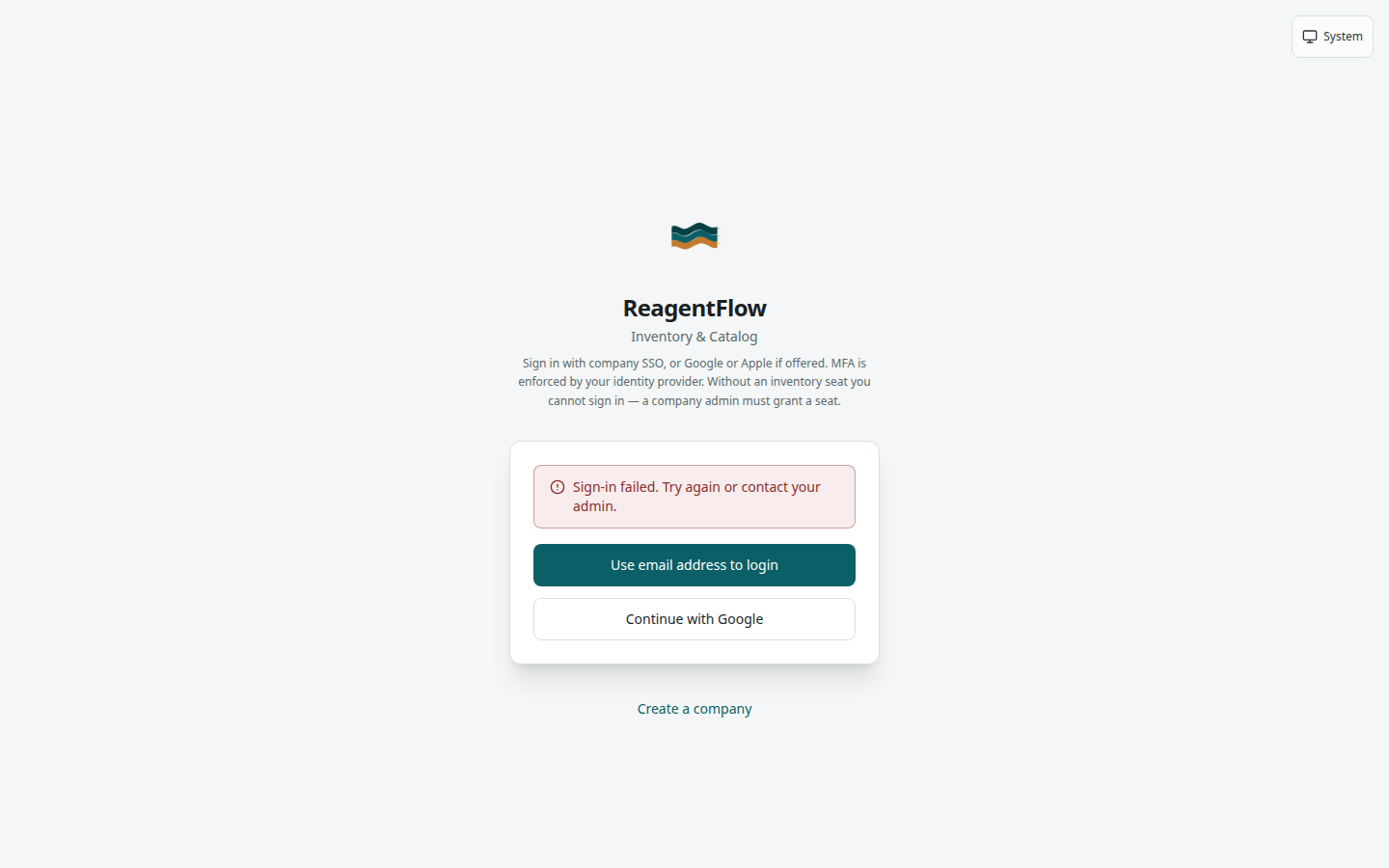
Status messages on the login page
- Restoring session… or Checking sign-in options… — the page is still loading.
- Unable to load sign-in options. with Retry — the options request failed. Choose Retry.
- Single sign-on is enabled but no identity provider is configured — ask your administrator.
Your identity provider’s page
When a provider button sends you away from ReagentFlow, you sign in on that provider’s own page (for example your company’s Okta or Entra page, or Google). Any extra step it asks for, such as MFA, comes from that provider. You then return to ReagentFlow signed in.
Accept the Terms
Right after sign-in, the app checks whether you have accepted the current version of the ReagentFlow Terms. If not, a full-page Terms screen appears first, and nothing else in the app is available until you choose Accept Terms. See Accept the Terms.
Where you land after sign-in
Once the Terms are accepted, the app opens the first page that fits your roles:
| Your roles | First page |
|---|---|
| Viewer (no seat, free) only | Sales items (/sales-items) |
| DASHBOARD only | Dashboard (/dashboard) |
| GLOBAL_ADMIN with no company job role | Tenants (/tenants) |
| SALES with no other job role | Sales (/sales) |
| PURCHASING without ADMIN, RECEIVING, or INVENTORY_CLERK | Catalog (/catalog) |
| Everyone else | Home (/home) |
If you were sent to the login page from a specific page (for example the payment card page), the app returns you there instead.
Losing a seat
If an admin removes you under Setup → Users, your seat ends and any open session ends. The next sign-in attempt brings you back here with the no-seat alert. Details for admins: Users.
Sign out
In the signed-in app, open the account menu at the top right (your photo or initials and your name), then choose Logout. See Profile, password, and theme.